From Engadget · Isaac Egbon · · 1m 20s
Block unwanted calls on Android in seconds
Stop spam and scammers from reaching you with Android's built-in blocking tools.
In brief
Stop spam and scammers from reaching you with Android's built-in blocking tools. You can block any number through your Phone or Contacts app, and unblock it anytime if you change your mind. Originally reported by Engadget.
Why you need to block numbers
Smartphones let scammers and spammers reach you constantly through calls and texts. Android makes it easy to block unwanted callers right from your Phone or Contacts app.
Block via Samsung Contacts app
Open Contacts, select the contact you want to block, tap More, then Block contact. Confirm and you're done.
Block unsaved numbers on Samsung
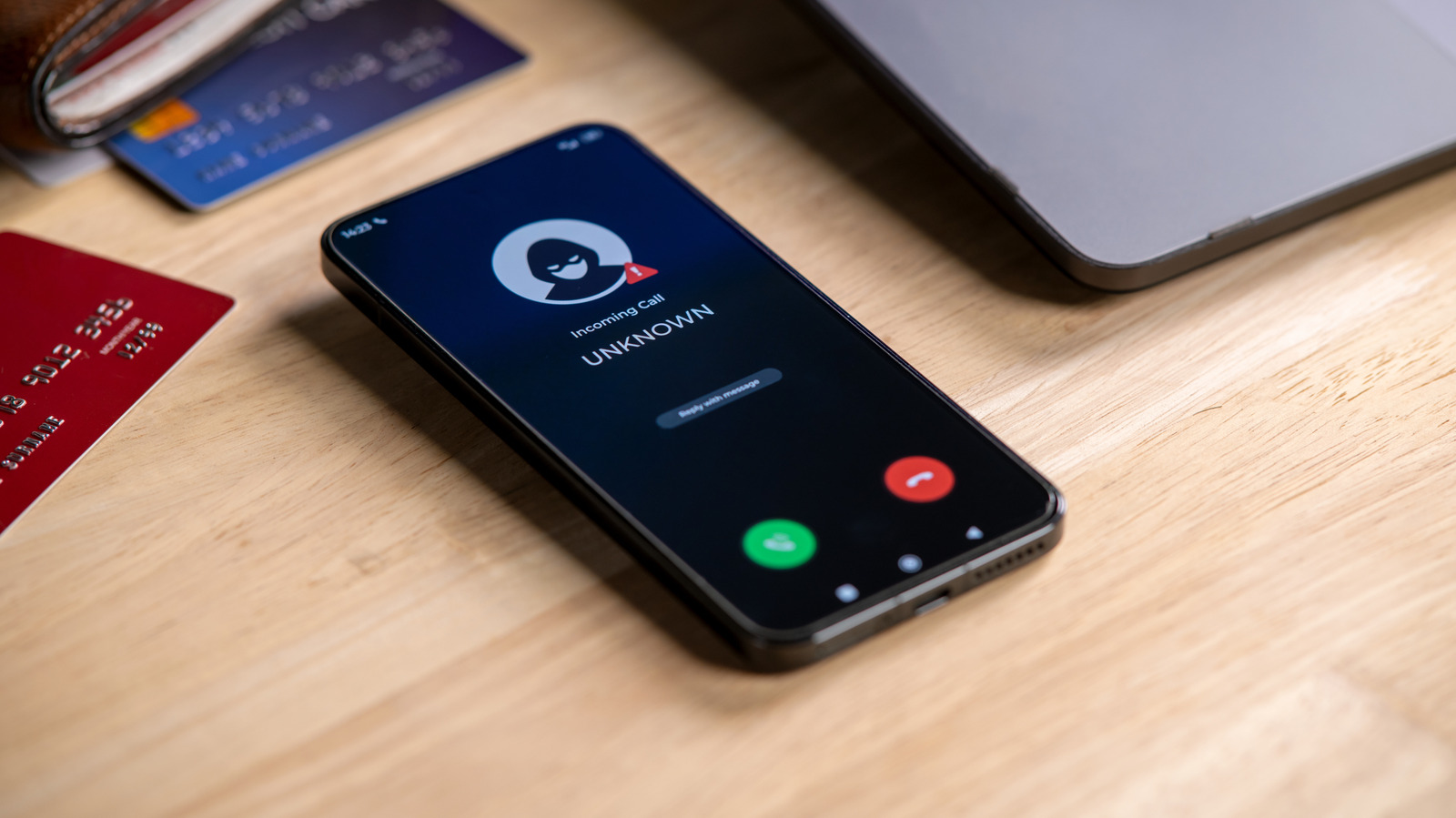
Open the Phone app, find the number you want to block, tap More, go to Settings, then Block numbers. Add the number and confirm.
Block on Pixel and stock Android
Open your Phone app, tap More, select Call history, choose the call you want to block, then tap Block/report spam.
How blocking actually works
Blocked numbers can't call or text you. Calls won't ring or show up, and texts go to spam. Blocking is device-based, so you'll need to reblock if you switch phones.
Unblock a number anytime
Go to your Phone or Contacts app settings, find Block numbers, and tap the minus or X next to the number you want to unblock.
The big picture
You can block any number through your Phone or Contacts app, and unblock it anytime if you change your mind.