From Engadget · Ben Stegner · · 3m
Customize Windows 11 to work the way you want
Windows 11 works better after you tweak its settings. Here are the changes that matter most.
In brief
Windows 11 works better after you tweak its settings. Here are the changes that matter most. Windows 11 requires customization to work well. Disabling ads, enabling clipboard history, and adjusting power settings significantly improve the user experience. Originally reported by Engadget.
Windows 11 needs tweaking
Windows 11 is usable out of the box, but customizing settings makes a much better experience. Disabling annoying behaviors and enabling practical features is well worth the time investment.
Set your default apps
Windows tracks default apps for every file type. If you have installed alternative browsers or editors, set them as default to avoid right-clicking every time you open a file.
Enable clipboard history

The Windows clipboard normally holds only one item. Enable Clipboard history in Settings to keep track of your last twenty five cut or copied items, then press Win plus V to access them.
Sync clipboard across devices
Windows 11 lets you enable Clipboard history across your devices so what you copy on your laptop is available on your desktop. Pin frequently used items like addresses to keep them permanently.
Disable Windows ads
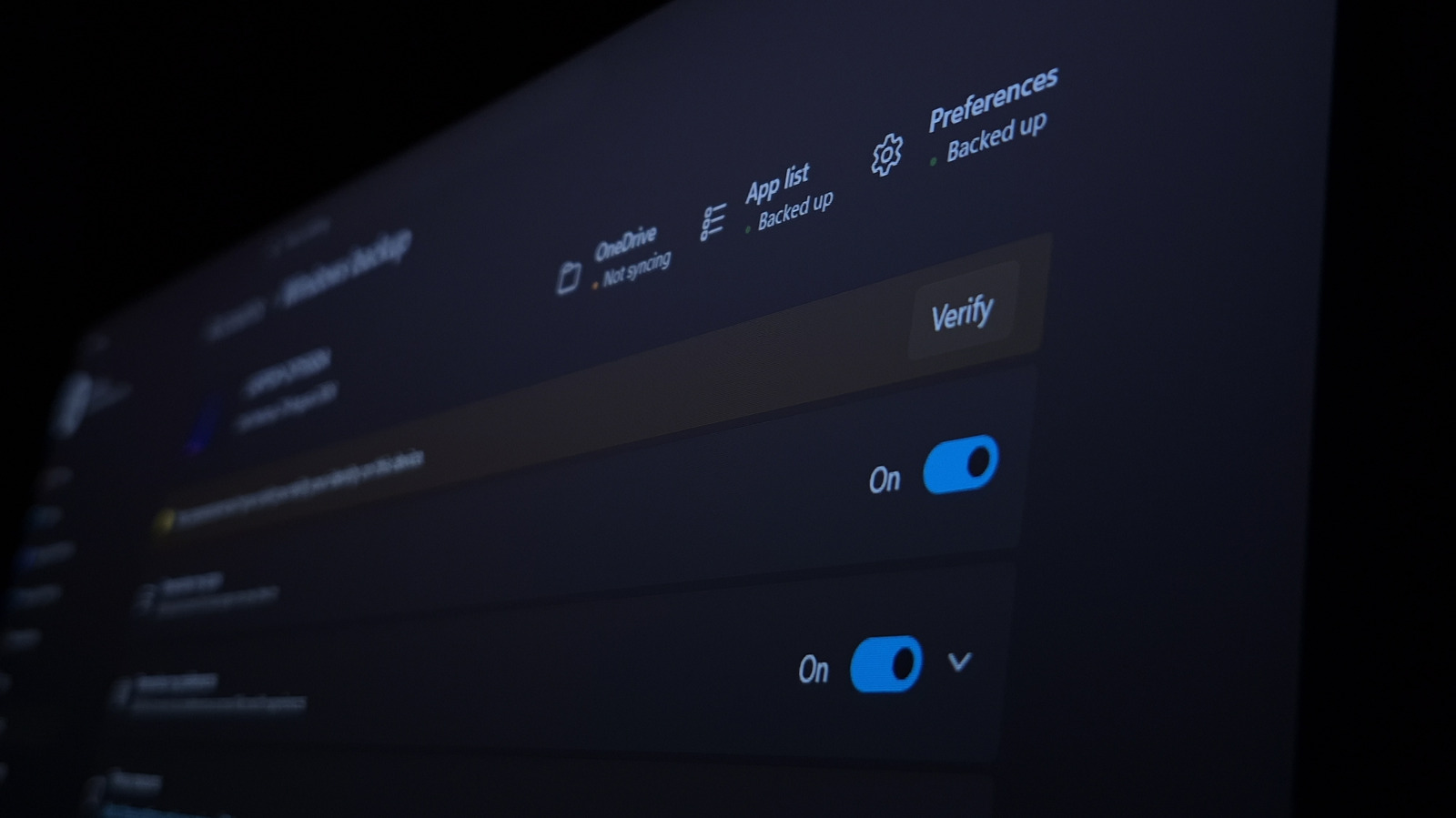
Windows nags you with suggestions, mostly ads for Microsoft products. Disable Show recommendations for tips, shortcuts, new apps, and more in Settings to prevent unwanted apps appearing in your Start menu.
Clean up lock screen clutter
Navigate to Personalization and Lock screen to disable Get fun facts, tips, tricks, and more on your lock screen. Change the Personalize your lock screen dropdown away from Windows spotlight to reduce clutter.
Stop subscription offers
Go to Settings, Privacy and security, Recommendations and offers to disable Personalized offers and Recommendations and offers in Settings. This stops Windows from pushing other subscriptions at you.
Add End Task to taskbar
Enable the End Task option in Settings, System, Advanced to add a shortcut for terminating processes to the right-click menu for apps on the taskbar when you need to force-close programs.
Control Windows update timing
Go to Settings, Windows Update, Advanced options and click Active hours. Choose Manually and pick a start and end time so Windows won't automatically restart your device during those hours.
Reduce eye strain at night
Enable Night light in Settings, System, Display to make your display warmer and reduce blue light at night. Set it to run from Sunset to sunrise or choose times manually to suit your schedule.
Boost performance and free space
Set Power Mode to Best performance in Settings, System, Power for maximum speed. Enable Storage Sense in Settings, System, Storage to automatically clean up your PC when you run low on disk space.
Disable unnecessary features
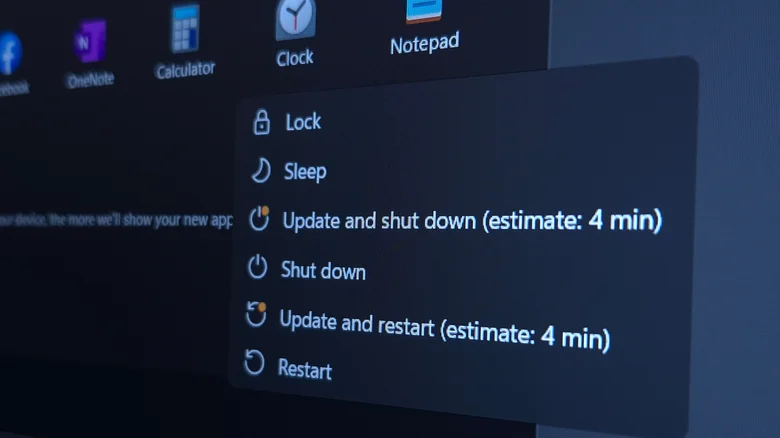
Turn off Delivery optimization in Windows Update settings to stop sharing update data with other devices on the internet. Disable Title bar window shake in Multitasking to prevent accidentally minimizing all apps.
The takeaway
Windows 11 requires customization to work well. Disabling ads, enabling clipboard history, and adjusting power settings significantly improve the user experience.