From Engadget · Jack Whitcombe · · 3m
Fix Google Wallet problems fast
Payments and digital IDs fail for simple reasons. Here's how to get them working.
In brief
Payments and digital IDs fail for simple reasons. Here's how to get them working. Most Google Wallet issues stem from NFC settings, incomplete card setup, or security requirements. Check these basics first before contacting your bank. Originally reported by Engadget.
Google Wallet stops working
Google Wallet lets you ditch your physical wallet and pay with your phone. But setup issues, phone settings, and bank problems can block payments and digital IDs.
Phone won't make contactless payments
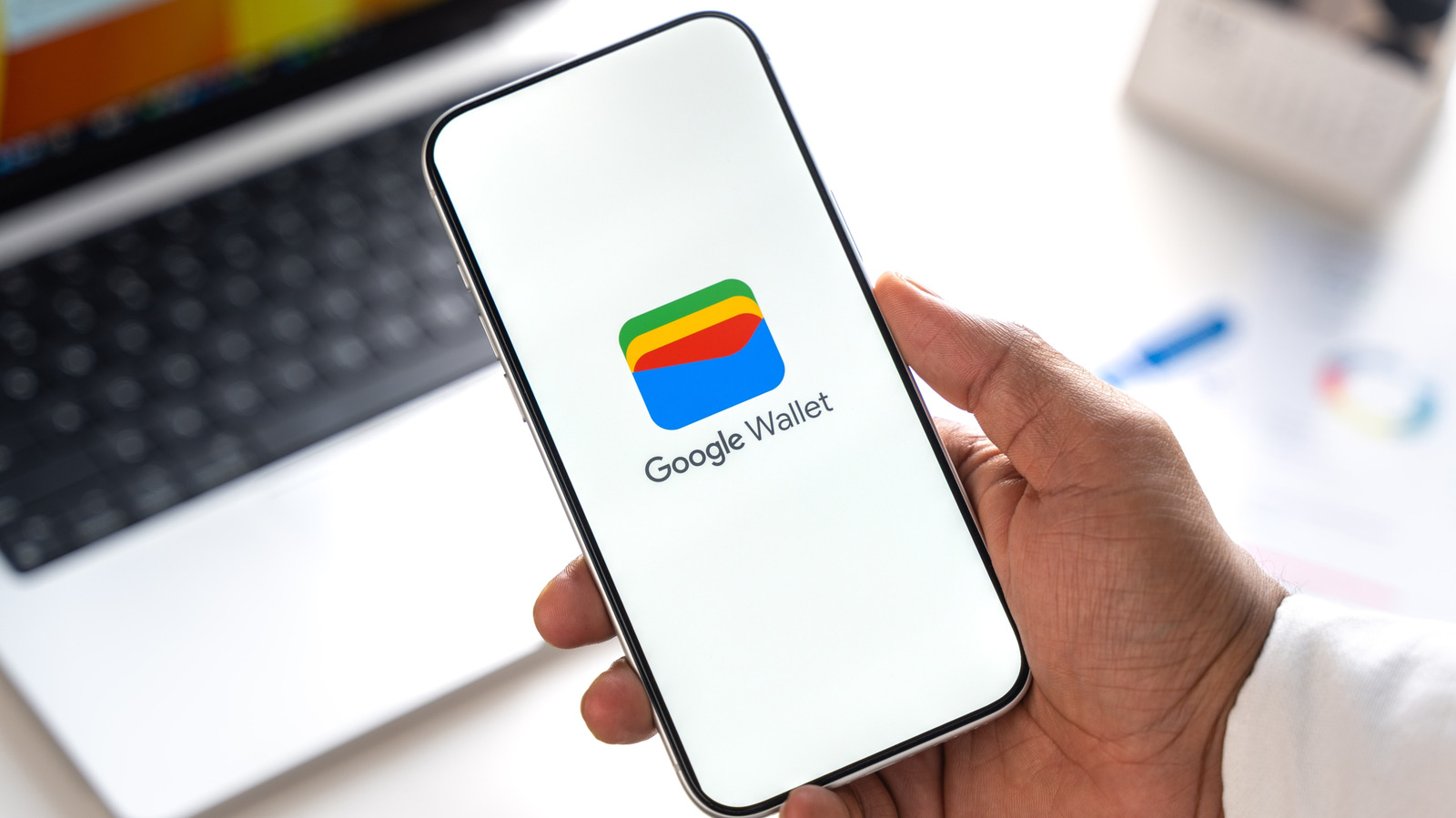
Your phone needs NFC enabled to tap and pay at terminals. Check Payment Setup in Google Wallet, then search Settings for NFC and turn it on.
NFC antenna placement matters
Hold your phone still against the reader for a few seconds. Don't wave it quickly. If it fails, move it slightly since the NFC antenna might be in an unexpected spot.
Your phone case blocks payments
Thick cases, metal cases, and cases with card slots can interrupt NFC signals. Remove your case and try again to confirm if it's the problem.
Bank card won't add to wallet
Not all banks support Google Wallet. Check if your bank and card are eligible, then contact your bank to approve the request or complete verification.
Verification code never arrives
Your bank may send a text code to verify your card. If it doesn't arrive, check spam folders and confirm your phone number is current with your bank.
Try alternate verification methods
If text codes fail, ask your bank about phone calls or account code verification. Tap Finish Setup in Wallet to complete remaining steps.
Phone lacks Google Play Protect

Google blocks payments on uncertified phones to protect your money. Check Settings > About in Play Store for Play Protect certification status.
Update security to enable payments
Your phone must have a screen lock (PIN, pattern, password, or biometrics) and Google Play Protect certification. Update Google Play services and Android if needed.
Custom Android ROMs block payments
Phones with unlocked bootloaders or custom ROMs like GrapheneOS can't make contactless payments. Check online guidance for your specific setup.
Digital ID needs right conditions

Your phone must run Android 9 or later with NFC and a screen lock. You need a personal Gmail account, and your country must support digital IDs.
Read your passport's NFC chip
Remove your phone case, lay your passport flat, and slowly move your phone's back over the cover or photo page. You'll need to verify with a face recording.
Keep your physical cards handy
Digital IDs aren't accepted everywhere yet. Don't ditch your physical wallet or ID. Most Wallet issues need only a quick settings fix or bank check.
The headline
Most Google Wallet issues stem from NFC settings, incomplete card setup, or security requirements. Check these basics first before contacting your bank.