From Engadget · Ben Stegner · · 3m
Force quitting on Windows, every way that works
Windows has no Force Quit button, but it has half a dozen ways to kill a frozen app.
In brief
Windows has no Force Quit button, but it has half a dozen ways to kill a frozen app. End task in Task Manager is the real force quit, and a taskkill shortcut gets you there in one click when Task Manager won't open. Originally reported by Engadget.
No Force Quit button here

Mac users get a single Force Quit command. Windows has the same capability under a different name, and which method you reach for depends on how badly the app is stuck.
“which is not actually called "force quitting" but is functionally the same”
The X is just a request

Clicking the X sends a standard close command. The app gets a chance to finish up, so Word or your browser can warn you about unsaved changes or an active download first.
Alt + F4 has a catch
It does the same thing as clicking X, but it closes whichever window you last clicked inside. With multiple monitors or a crowded desktop, that is easy to get wrong.
“This closes the active app window (the last one you clicked inside), which often doesn't have a clear visual cue.”
Some apps only hide
Discord, Spotify, Slack and Telegram drop to the system tray instead of closing. Word, File Explorer, Notepad and Paint actually quit. Many apps let you change this in settings.
Quit tray apps properly
Look for File > Quit or File > Exit, often bound to Ctrl + Q. Or click the small arrow by the taskbar, right-click the tray icon and choose Quit or Close.
Task Manager is the real thing
Press Ctrl + Shift + Esc, or right-click empty taskbar space and pick Task Manager. Open the Processes tab to see everything running.
Find it, then end it
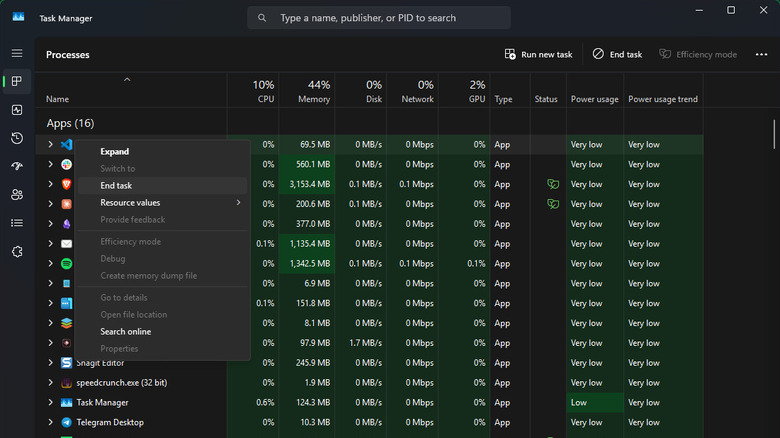
Sort by Name to split Apps from background and Windows processes, or sort by Memory to catch resource hogs. Select the app and hit End task. Unsaved work is gone.
“This forcefully terminates the process without giving it a chance to properly shut down”
Never kill Explorer outright
Windows Explorer runs File Explorer and the taskbar, so it offers Restart task instead. If it does die, use Run new task and enter explorer.exe to bring it back.
Put End task on the taskbar
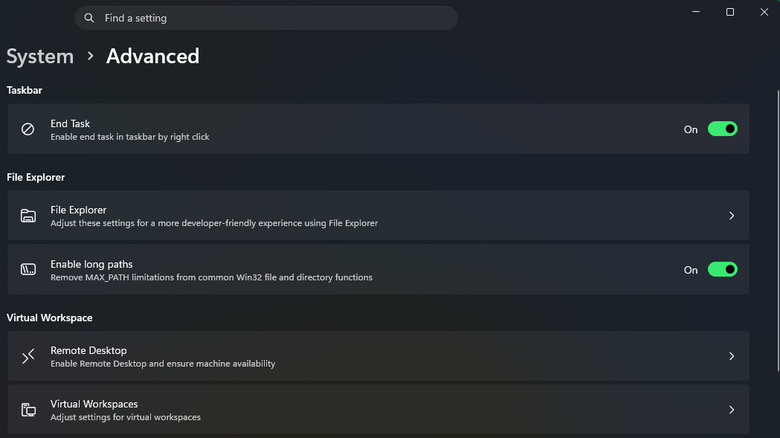
Press Win + I, go to System > Advanced and turn on End Task. Now right-clicking a taskbar app offers it directly. Do not confuse it with Close window, which asks nicely.
“End task destroys the process without asking, while Close window sends the normal shutdown request.”
When End task fails
Switch to the Details tab in Task Manager, right-click the stuck process and choose End process tree. That takes down every related process with it.
A one-click kill shortcut
Make a desktop shortcut running taskkill /f /fi "status eq not responding". Set it to Run Minimized and give it a hotkey. SuperF4 does similar, and both work when Task Manager won't open.
“the /f flag forcefully ends the process, while /fi filters the command to only run on processes that match”
The big picture
End task in Task Manager is the real force quit, and a taskkill shortcut gets you there in one click when Task Manager won't open.