From Engadget · Alec Hively · · 1m 50s
How to clear the cache on your Fire TV
Your Fire TV stores temporary files to speed up loading, but too much cache can slow it down. Here's how to clear it.
In brief
Your Fire TV stores temporary files to speed up loading, but too much cache can slow it down. Here's how to clear it. Fire TV devices accumulate cache that can cause slowdowns; you can clear it manually through settings or Amazon's website, though rebuilding shortcuts takes time. Originally reported by Engadget.
Fire TV slowing down
Your Amazon Fire TV or Fire TV Stick may run slow because cache is taking up too much storage space. The device stores watch history and thumbnails in temporary files to speed up loading.
Too much cache becomes a problem
Too many apps and shows cause the cache to balloon, turning from helpful to harmful. You likely won't know you've crossed that threshold until performance suffers.
Amazon clears cache automatically
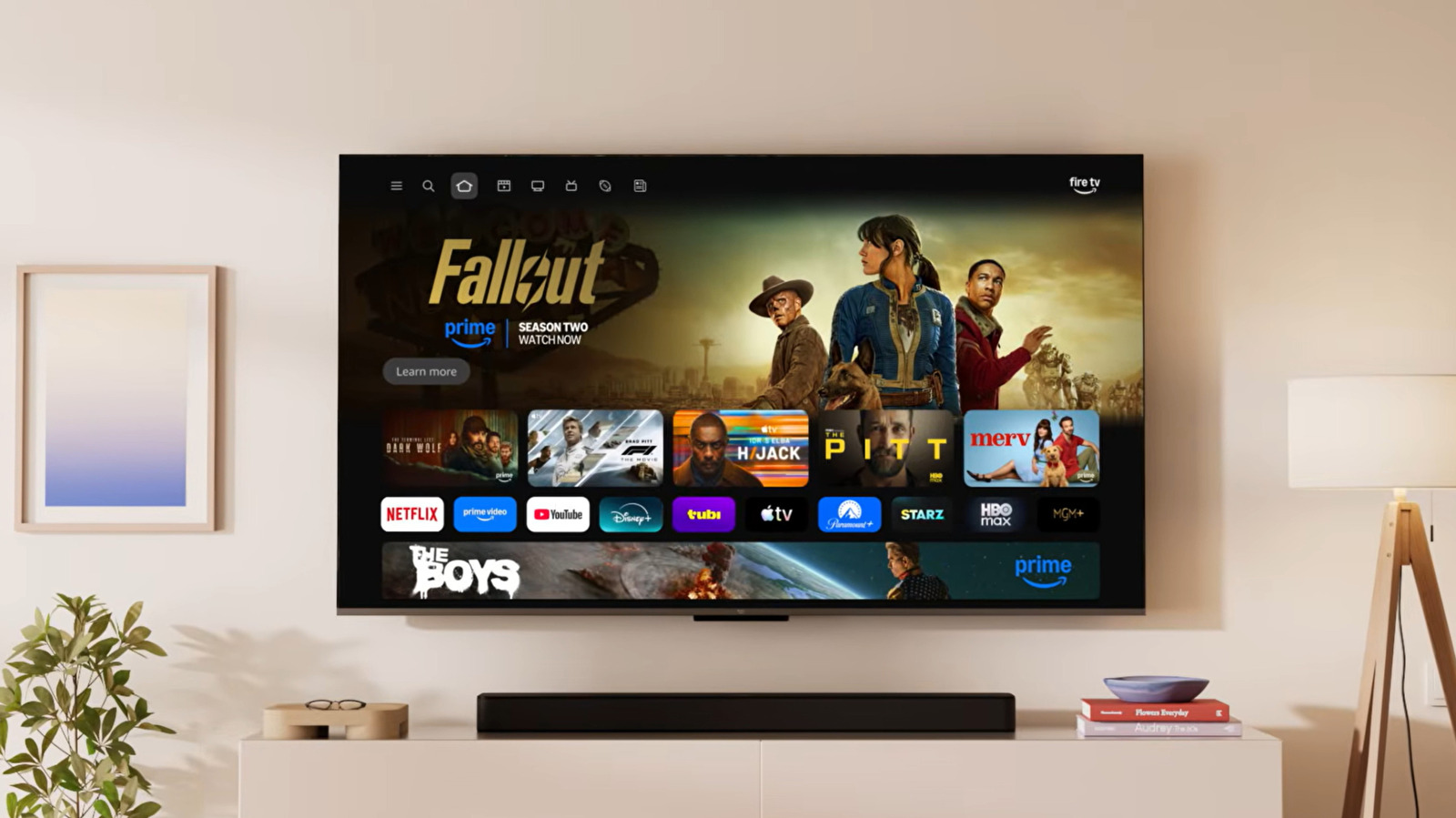
When your Fire TV runs low on storage, it automatically clears the cache of apps you haven't used in the past thirty days. This feature is on by default and cannot be deactivated.
Clear cache manually through settings
Open your Fire TV menu, go to Settings and select Applications. Choose Manage Installed Applications, then select Clear All Application Caches and confirm. Or select a specific app and choose Clear Cache.
Clearing cache takes time to help
Clearing your cache isn't guaranteed to speed up your Fire TV immediately. It's a medium to long term solution, as your device needs to rebuild the shortcuts that cache provides.
The big picture
Fire TV devices accumulate cache that can cause slowdowns; you can clear it manually through settings or Amazon's website, though rebuilding shortcuts takes time.
Read the TL;DR — this story on one card.