From Engadget · Dave Meikleham · · 2m
How to set up your Sonos speakers using the app
Sonos's app has improved dramatically since its notorious 2024 update, making speaker setup straightforward.
In brief
Sonos's app has improved dramatically since its notorious 2024 update, making speaker setup straightforward. The Sonos S2 app is now reliable for setup, and troubleshooting connection issues usually comes down to network problems or a simple restart. Originally reported by Engadget.
Sonos app finally works well
After a notoriously buggy 2024 update, Sonos's software is now in solid shape, making speaker setup straightforward and hassle-free.
“Why is the Sonos app so broken?”
Download the app and create an account
Get the Sonos S2 app from the App Store or Google Play, then create a Sonos account. Make sure your speaker and app are on the same Wi-Fi network before starting.
Start your first speaker setup
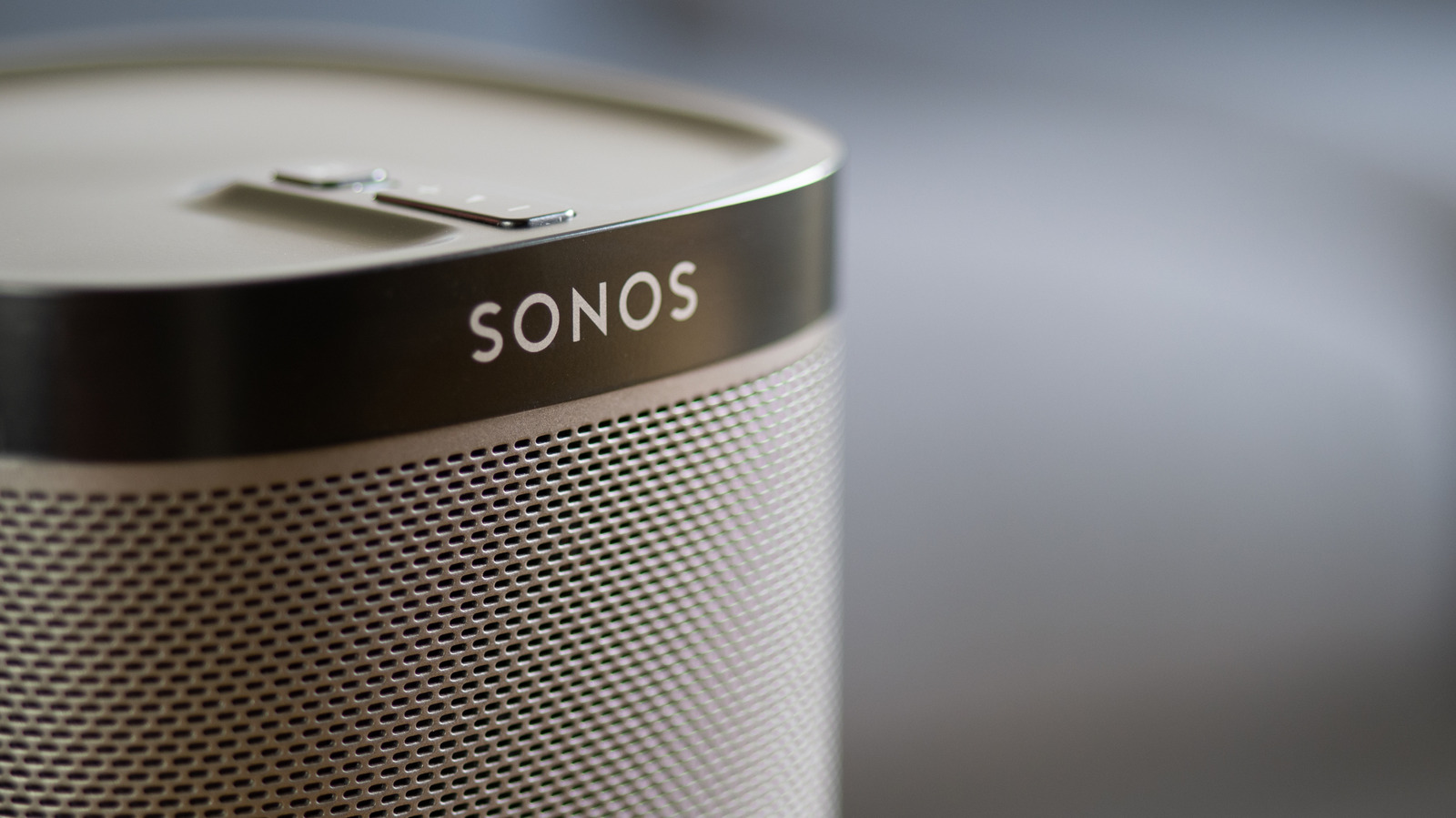
Open the app, select Start a new Sonos system, then Add your speaker. The app finds your hardware and guides you through connecting to Wi-Fi. Have your router password ready.
Assign your speaker to a room
After connecting to Wi-Fi, assign your speaker to a room using one of Sonos's 22 preset names like bathroom or TV room, or create a custom name.
Add more speakers easily
Additional speakers are simpler to set up. Go to Settings > Add Speaker or Component to pair multiple devices. Surround speakers must match the same model.
Connection problems are usually network issues
If the app can't find your speaker, check that both are on the same Wi-Fi network, not a guest network. A changed router password or active VPN can also block pairing.
Try a restart before factory reset
Unplug your speaker, wait at least ten seconds, plug it back in, and wait another minute before trying to pair again. This solves most lingering issues.
Factory reset as last resort
Hold the Bluetooth button while powering on until the light flashes orange and white, then green. This wipes saved EQ settings and should only be used if other fixes fail.
Use TruePlay to optimize sound
TruePlay analyzes your room by playing test tones while you walk around. It adjusts audio to compensate for furniture placement and wall reflections for better balance.
Fine-tune EQ settings in the app
Go to Settings > Your System > Speaker > Sound > EQ to adjust bass, treble, surround audio, and subwoofer output. Sliders range from minus fifteen to plus fifteen for subtle improvements.
The bottom line
The Sonos S2 app is now reliable for setup, and troubleshooting connection issues usually comes down to network problems or a simple restart.