From Engadget · Filipe Espósito · · 1m 20s
iOS 27 finally lets you dial back Liquid Glass
Apple swapped the rigid Liquid Glass toggles for a slider, and there's still a nuclear option buried in Accessibility.
In brief
Apple swapped the rigid Liquid Glass toggles for a slider, and there's still a nuclear option buried in Accessibility. Settings > Appearance > Liquid Glass now has a slider: left for glassier, right for more opaque, center for a mix. For near-total removal, turn on Reduce Transparency. Originally reported by Engadget.
Not everyone loved the glass
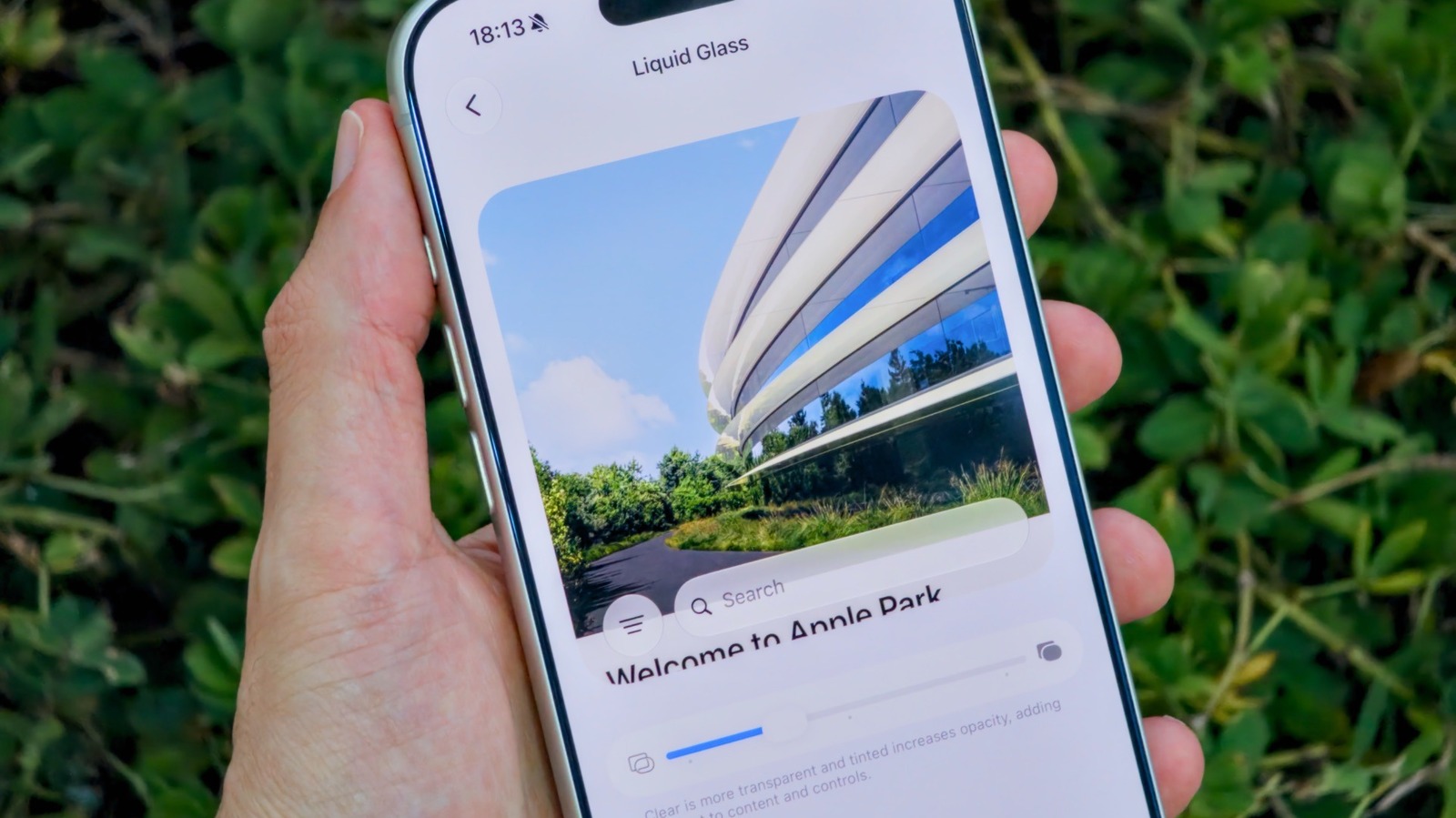
Apple's Liquid Glass look split people from day one. Fans liked the gloss, critics said text got harder to read.
“Some people love the glossy look, while others criticize it for reducing readability.”
Tinted mode wasn't enough
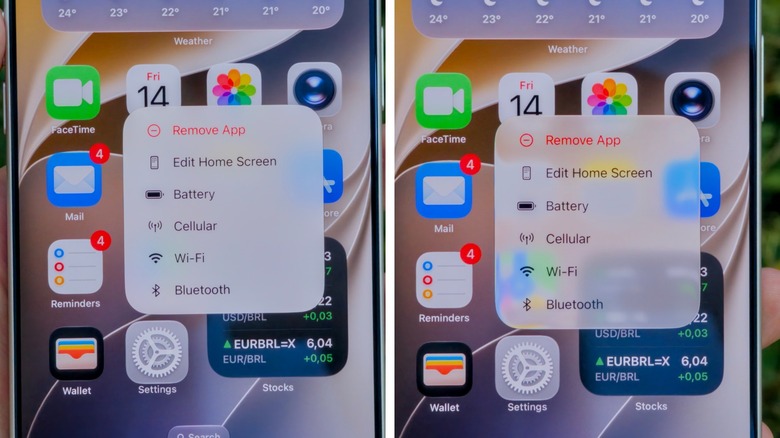
iOS 26.1 added Tinted Mode, which cut the opacity and raised contrast. Complaints kept coming anyway.
iOS 27 gives you a slider
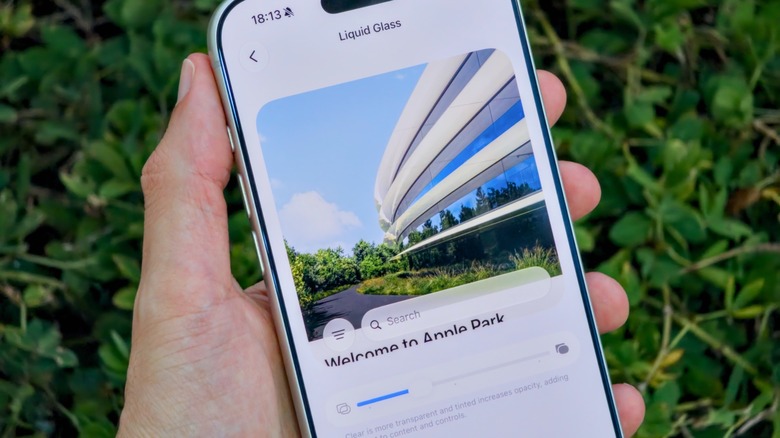
Open Settings, go to Appearance, then Liquid Glass. The old on-or-off toggles are replaced by a single slider.
“It adds a much-requested slider for making Liquid Glass more readable and customizable”
Left for glass, right for solid
Drag left and the interface looks more like real glass. Drag right for the opaque style of older iOS. Park it in the center for a bit of both, with a live preview on screen.
The Lock Screen is separate
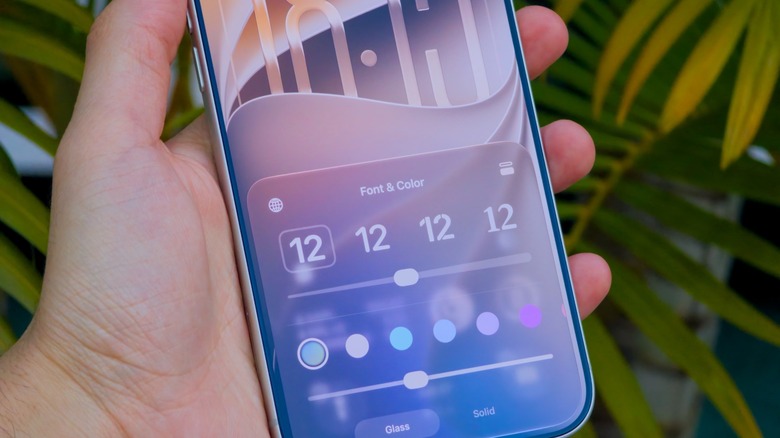
Lock Screen glass intensity still has its own control, apart from the Settings slider. You need iOS 27, which runs on iPhone 11 and newer.
Kill it almost entirely
Go to Accessibility, then Display & Text Size, and switch on Reduce Transparency. It's blunter than the slider and strips out most of the glassy effects.
“This option is much more aggressive than the Liquid Glass slider”
What it means
Settings > Appearance > Liquid Glass now has a slider: left for glassier, right for more opaque, center for a mix. For near-total removal, turn on Reduce Transparency.