From Engadget · Alec Hively · · 2m
Make your CarPlay setup work harder for you
Apple's in-car system works well by default, but customizing its layout, widgets and features can make your commute safer and more entertaining.
In brief
Apple's in-car system works well by default, but customizing its layout, widgets and features can make your commute safer and more entertaining. CarPlay users can improve their driving experience by customizing app layouts, enabling widgets, adjusting display settings and using voice controls and Focus features…
CarPlay gets better with tweaks
Apple's CarPlay turns your iPhone into a navigation and communication hub in your car. While it works well by default, customization can make your commute safer and more entertaining.
Rearrange apps where they matter
To customize CarPlay's layout, open Settings on your iPhone, tap General, select CarPlay, choose your vehicle and enter the Apps menu. Drag apps up or down to prioritize the most important ones.
Add widgets for quick information
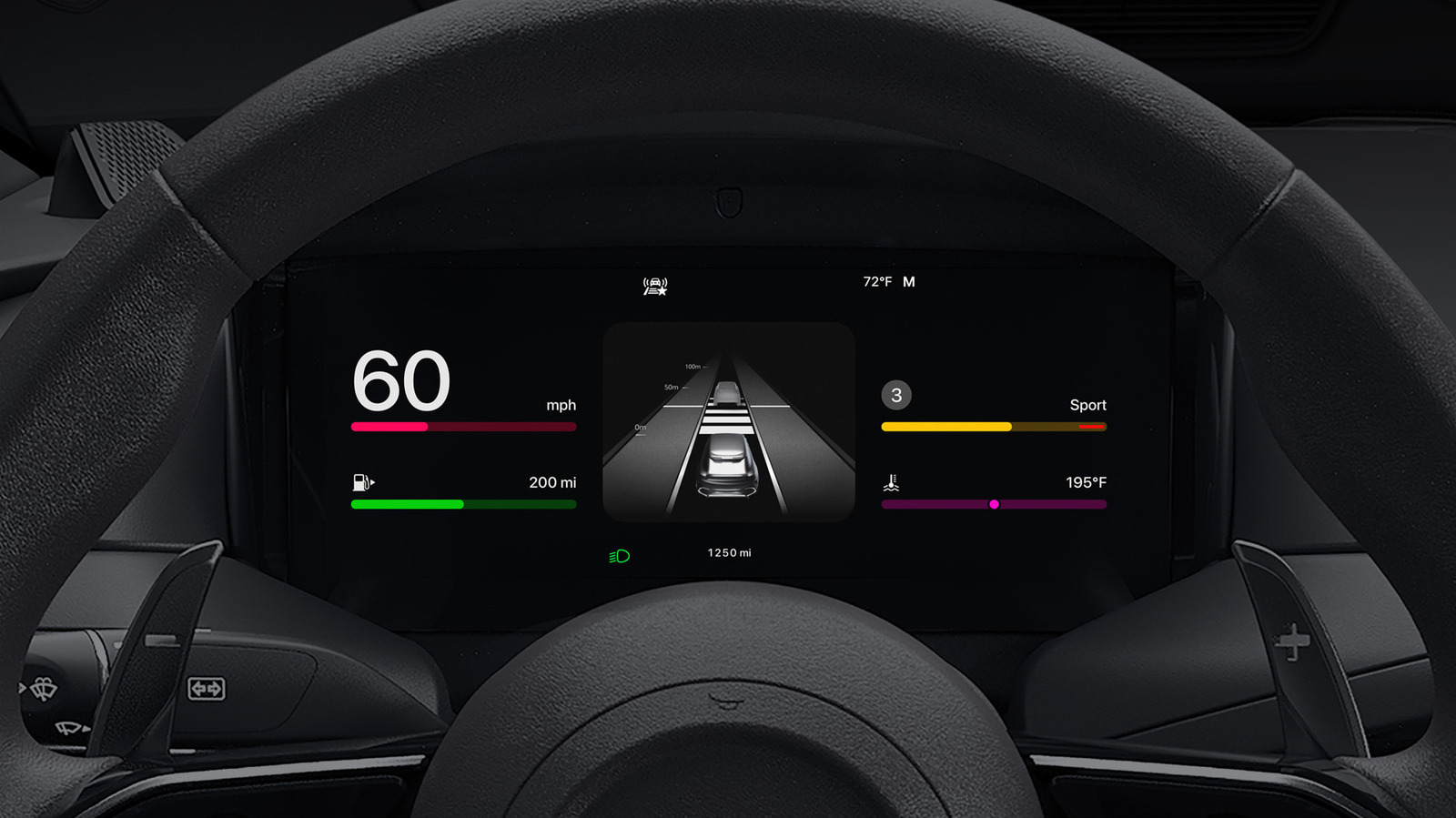
Starting with iOS twenty six, you can add CarPlay widgets like weather, calendar and clock to your car's display. Edit them in the same menu where you selected your apps, and enable Smart Rotate for intelligent swapping throughout the day.
Adjust brightness and appearance
Go to Settings greater than Appearance on your CarPlay screen and select Automatic to adjust brightness automatically. Customize your wallpaper and icon colors under Settings greater than Customize icons in CarPlay to suit your preferences.
Use Siri and voice commands
Say hey Siri or press your car's voice button to send messages, start navigation and change playlists. iOS twenty seven brings a revamped Siri AI that is more useful in the car, and you can enable Voice Commands for additional hands-free controls.
Enable Driving Focus to reduce distractions
Driving Focus reduces notifications while keeping essential driving apps active. Enable it by going to Settings on your vehicle's CarPlay display, selecting Driving Focus and choosing Activate with CarPlay. Customize which contacts can reach you.
Choose wired or wireless connections
Wireless CarPlay is convenient but does not charge your phone unless your car has a wireless charging pad. On extended road trips, plug in your phone to keep the battery topped up while using CarPlay.
Pin messages and build automations
In the Messages app on your iPhone, tap and hold a frequent conversation and choose Pin to keep it at the top in both Messages and CarPlay. Use the Shortcuts app to build CarPlay automations for even smoother operation.
The headline
CarPlay users can improve their driving experience by customizing app layouts, enabling widgets, adjusting display settings and using voice controls and Focus features.