From Engadget · Kate Irwin · · 2m
Nintendo Switch 2 won't connect to your TV? Try this
A black screen when docking your Switch 2? Work through these troubleshooting steps before calling Nintendo support.
In brief
A black screen when docking your Switch 2? Work through these troubleshooting steps before calling Nintendo support. Nintendo Switch 2 owners experiencing TV connection issues can troubleshoot power, HDMI cables, TV settings and console software before contacting support. Originally reported by Engadget.
Switch 2 TV connection basics
The Nintendo Switch 2 lets you play on its built-in screen or dock it to play on a bigger TV. But getting it to connect isn't always straightforward.
Start with power troubleshooting
Nintendo recommends powering off your TV and disconnecting all cables from the Switch 2 dock. Unplug the AC adapter from both the dock and wall outlet, remove the handheld, and wait about thirty seconds.
Check your AC adapter
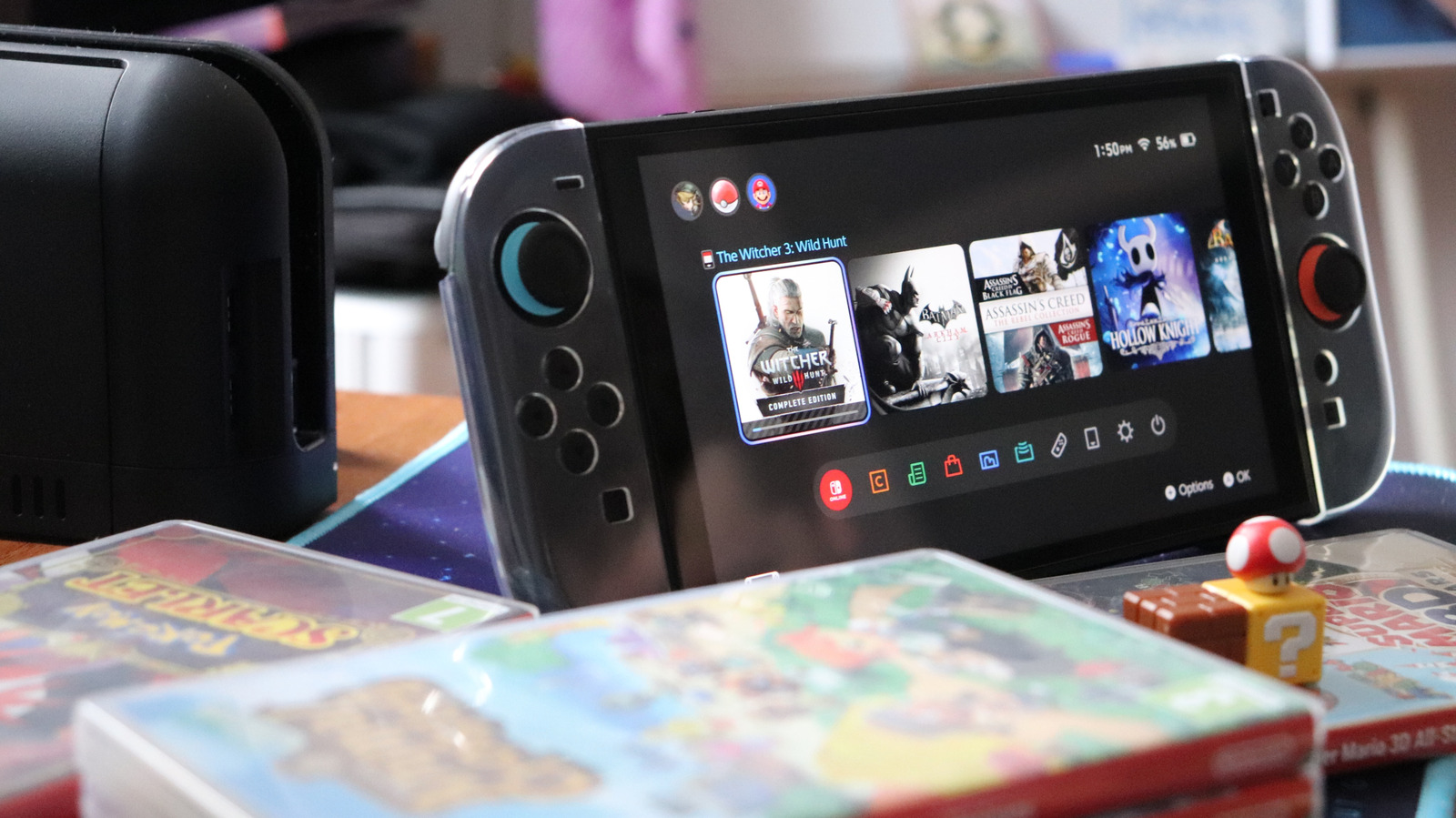
The Switch 2 dock has three ports on the back. The top port is for AC power. Plug the adapter back in and check for fraying or visible damage on cables.
Verify power requirements
The Switch 2 requires more power than the original Nintendo Switch. It needs an adapter delivering a minimum of fifty four watts to support a continuous TV connection.
“It needs an adapter delivering a minimum of 54W to support a continuous TV connection.”
Test your HDMI cable
Plug an Ultra High Speed dual-end HDMI cable into the HDMI-out port on your Switch 2 dock.
Use the right HDMI port
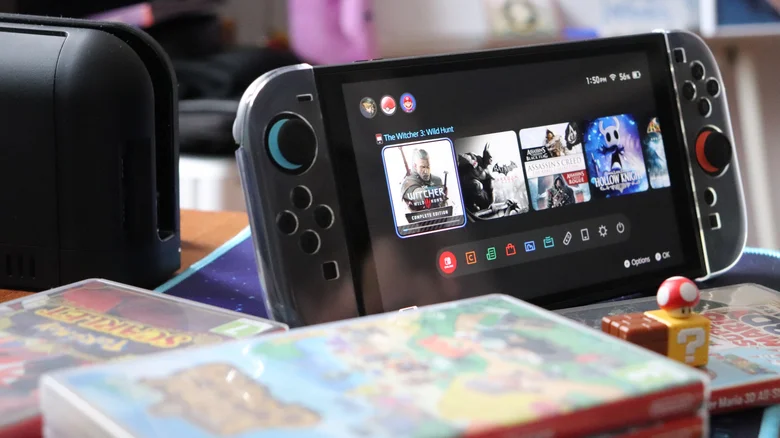
Plug the other end into an HDMI-in port on your TV. Use an HDMI two point one port if possible, as it enables up to eight K resolution at sixty hertz or four K at…
Adjust your TV's HDMI settings
Turn on your TV and look in picture, advanced or output settings menus for Auto Low Latency Mode, gaming mode, HDMI Ultra HD Deep Color or Input Signal Plus.
Check console software and settings
Remove the handheld from the dock and turn it on. Make sure the latest software update is installed by navigating to System Settings, System, System Update.
Adjust display settings
Try changing System Settings, Display, TV Resolution to Automatic or the resolution matching your TV's output. Toggle on System Settings, Display, Match TV Power State to automatically turn the TV on when docked.
Contact Nintendo if nothing works
If you've tried all troubleshooting steps and still have issues, contact Nintendo support. You may need to mail in your dock and console for Nintendo to investigate the problem.
In short
Nintendo Switch 2 owners experiencing TV connection issues can troubleshoot power, HDMI cables, TV settings and console software before contacting support.