From Engadget · Alec Hively · · 1m 40s
Not every USB-C port can send video
Same shape, very different powers. Here's how to tell whether your USB-C port will actually drive a display.
In brief
Same shape, very different powers. Here's how to tell whether your USB-C port will actually drive a display. Video over USB-C depends on DisplayPort Alt Mode, and your device, cable and display all have to support it. Originally reported by Engadget.
One port, many abilities
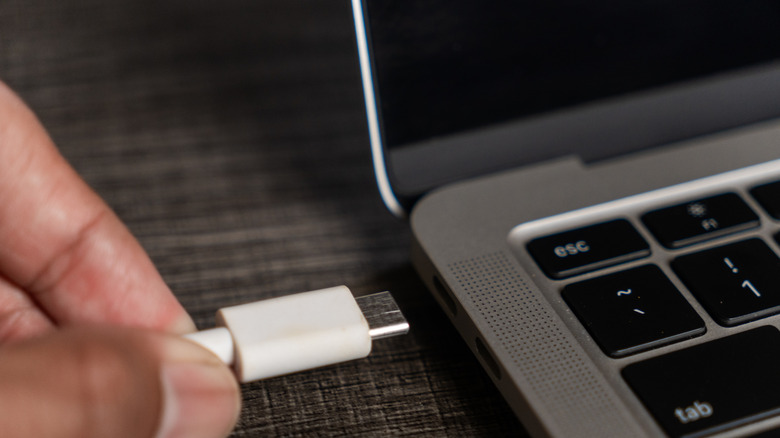
USB-C has been the universal plug since 2014, but the shared shape hides real differences. Some ports move data, power and video. Others only charge.
“not all USB-C ports and cables are created equal despite their shared standard”
The answer is in the specs
There is no way to tell by looking at the connector alone. The capability is written in each product's spec sheet, so that is where you check before buying.
Look for DP Alt Mode
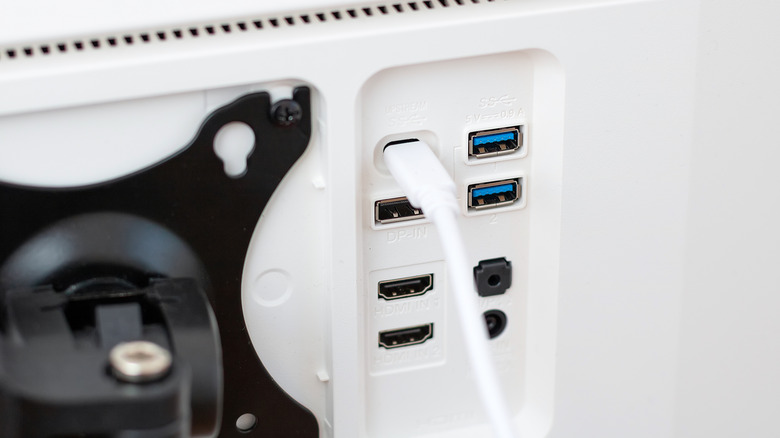
DisplayPort Alternate Mode lets a USB-C cable carry video using the DisplayPort protocol, at high resolutions and fast refresh rates, alongside data on the same cable.
“DP Alt Mode enables a single cable to transfer both data and audiovisual displays.”
All three parts must agree
Your device, your display and the cable joining them each need DP Alt Mode. One weak link and you get power but no picture.
“DP Alt Mode connections require that all three parts... are DP Alt Mode compatible”
Newer standards bake it in
USB 3.1 and 3.2 support it only if the maker chose to. USB4 mandates power and video. Thunderbolt 3 through 5, marked by the lightning icon, always carry video.
Read the icons, then the manual
A lightning bolt means Thunderbolt. A small DP logo next to the port means DisplayPort Alt Mode. No markings? Check the manual or look up the product specs online.
Workarounds when it won't
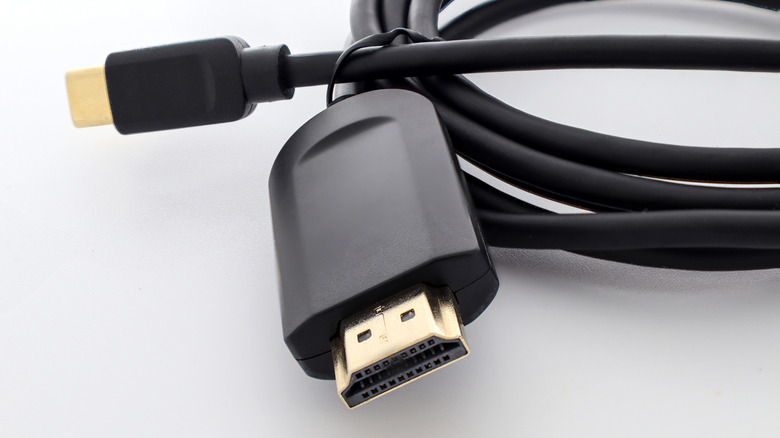
Use HDMI if you have it, ideally 2.0 or later. No HDMI input? An active adapter works but adds overhead, so skip it for gaming. AirPlay or Miracast is the wireless fallback.
“Normal adapters... won't work if your laptop doesn't support DP Alt Mode.”
What to remember
Video over USB-C depends on DisplayPort Alt Mode, and your device, cable and display all have to support it.