From Engadget · Ben Stegner · · 3m
Sleep or shut down your MacBook? Here's when to use each
macOS offers two power modes with different trade-offs. Sleep keeps your session ready but uses battery; shutdown cuts power entirely but takes longer to resume.
In brief
macOS offers two power modes with different trade-offs. Sleep keeps your session ready but uses battery; shutdown cuts power entirely but takes longer to resume. MacBooks offer sleep and shutdown modes for different situations. Use sleep when returning soon; shut down before extended absences or when packing the…
Two power modes explained
macOS gives you two main options when done using your Mac: sleep and shutdown. Each has different effects on power consumption, data preservation and startup speed.
What happens during shutdown
Shutting down closes every app, shuts down the operating system and clears RAM. The system draws no power once fully shut down. Don't close the lid until the screen is off.
“closing the lid during the shutdown process can cause it to start more slowly next time”
Shutdown countdown and options
A one-minute countdown runs when you click Shut Down from the Apple menu, letting you cancel if needed. Check Reopen windows when logging back in to relaunch the same apps after rebooting.
When to force shutdown
Press and hold the Touch ID button at the top-right for several seconds to force shutdown if the entire system is unresponsive. You'll lose any unsaved work doing this.
How sleep mode works
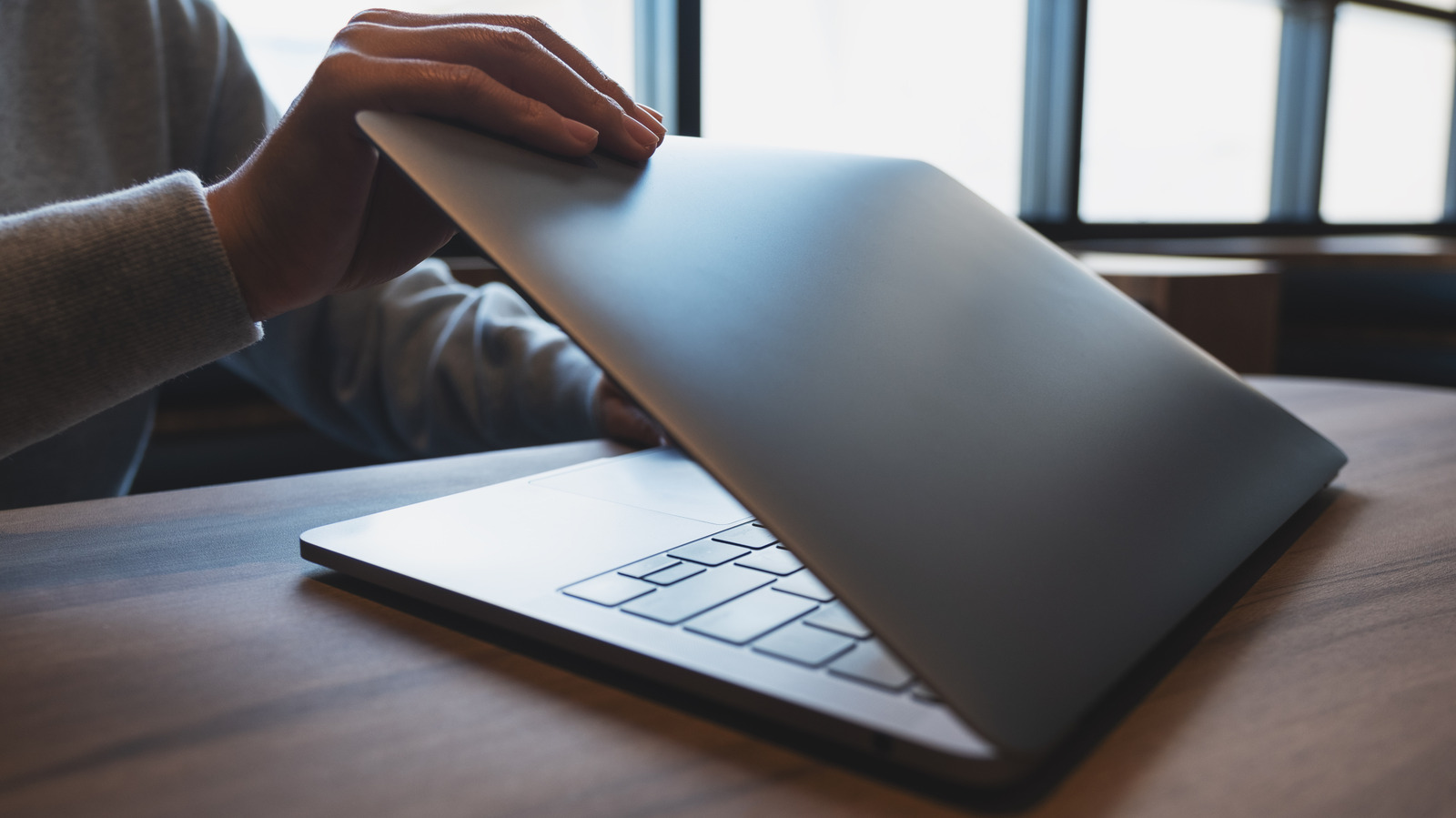
Close the lid or select Sleep from the Apple menu to put your MacBook to sleep. Your session stays in memory, so you pick up right where you left off once you authenticate.
Power Nap keeps tasks running

While sleeping, Power Nap lets your Mac grab emails, sync Calendar data and respond to Find My pings. Plugged in, it can run Time Machine backups and search indexing too.
Battery drain in sleep mode
Your Mac uses less than one percent battery per hour while asleep, especially modern Apple silicon models. If battery drains quickly, unplug accessories and close constantly active apps like Slack.
“less than one percent per hour”
Adjust automatic sleep timing
Open System Settings, choose Lock Screen and set when to turn the display off on battery. Your Mac will sleep shortly after the display turns off if you don't take action.
Use sleep for short absences
Use sleep mode when you'll use your MacBook again soon, like stepping away for lunch or finishing work for the day. It enables quick resuming and keeps data syncing with minimal power use.
Shut down before extended breaks
Shut down your MacBook when you don't plan to use it for days or weeks, or when packing it up. Heat from Power Nap working in a bag is dangerous. Modern Macs start quickly enough upon return.
The essence
MacBooks offer sleep and shutdown modes for different situations. Use sleep when returning soon; shut down before extended absences or when packing the laptop.