From Engadget · Ben Stegner · · 2m
Take back your iPhone with Screen Time
Apple already ships the tools to cut your phone habit, buried in one Settings menu most people never open.
In brief
Apple already ships the tools to cut your phone habit, buried in one Settings menu most people never open. Screen Time only works if you set a passcode. Without one, every limit is a suggestion you can tap past. Originally reported by Engadget.
Your phone eats hours

Getting sucked into an app you opened for thirty seconds is the default experience. Screen Time is Apple's built-in answer, sitting in Settings and ignored by most people.
Start with the numbers
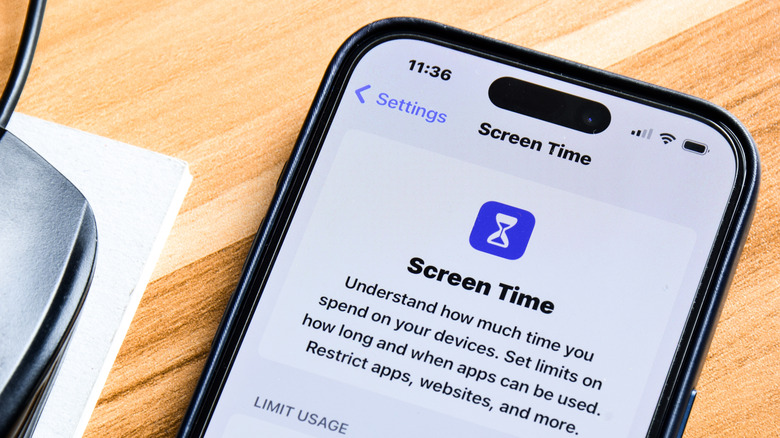
Open Settings, then Screen Time. The chart at the top shows daily usage for the week. Tap See All App & Website Activity for the full breakdown.
Find your real triggers
That activity page lists your heaviest apps, how many times you unlock the phone, which app you open first after unlocking, and which apps send the most notifications.
“what apps are sending you the most notifications (and thus causing you to look at your phone)”
Pick your escape hatches
Set Always Allowed before anything else. Choose which apps survive a lockdown, then use the Contacts dropdown to decide who can still reach you by phone.
Downtime shuts the door
Turn on Downtime and only your allowed apps and chosen contacts get through. Schedule it per day, and you get a five minute warning before it kicks in.
App Limits cap the clock
Tap Add Limit to set a daily ceiling by category, like Social or Games, or app by app. Websites get their own button, and Customize Days handles weekends.
The bypass button
Hit a limit and you get a block screen with Ignore Limit: one more minute, fifteen minutes, or the rest of the day. Turn on Share Across Devices so limits sync to iPad and Mac.
Same menu runs kids' devices

In a Family Sharing group, your children appear at the bottom of the Screen Time page. Screen Distance, Communication Limits and Communication Safety all live here.
Where kid controls stop
Contact restrictions only cover Apple apps like Phone, Messages and FaceTime, not WhatsApp. Content & Privacy Restrictions can block app installs or lock location permissions.
“They won't work for third-party messengers like WhatsApp.”
Make it actually stick
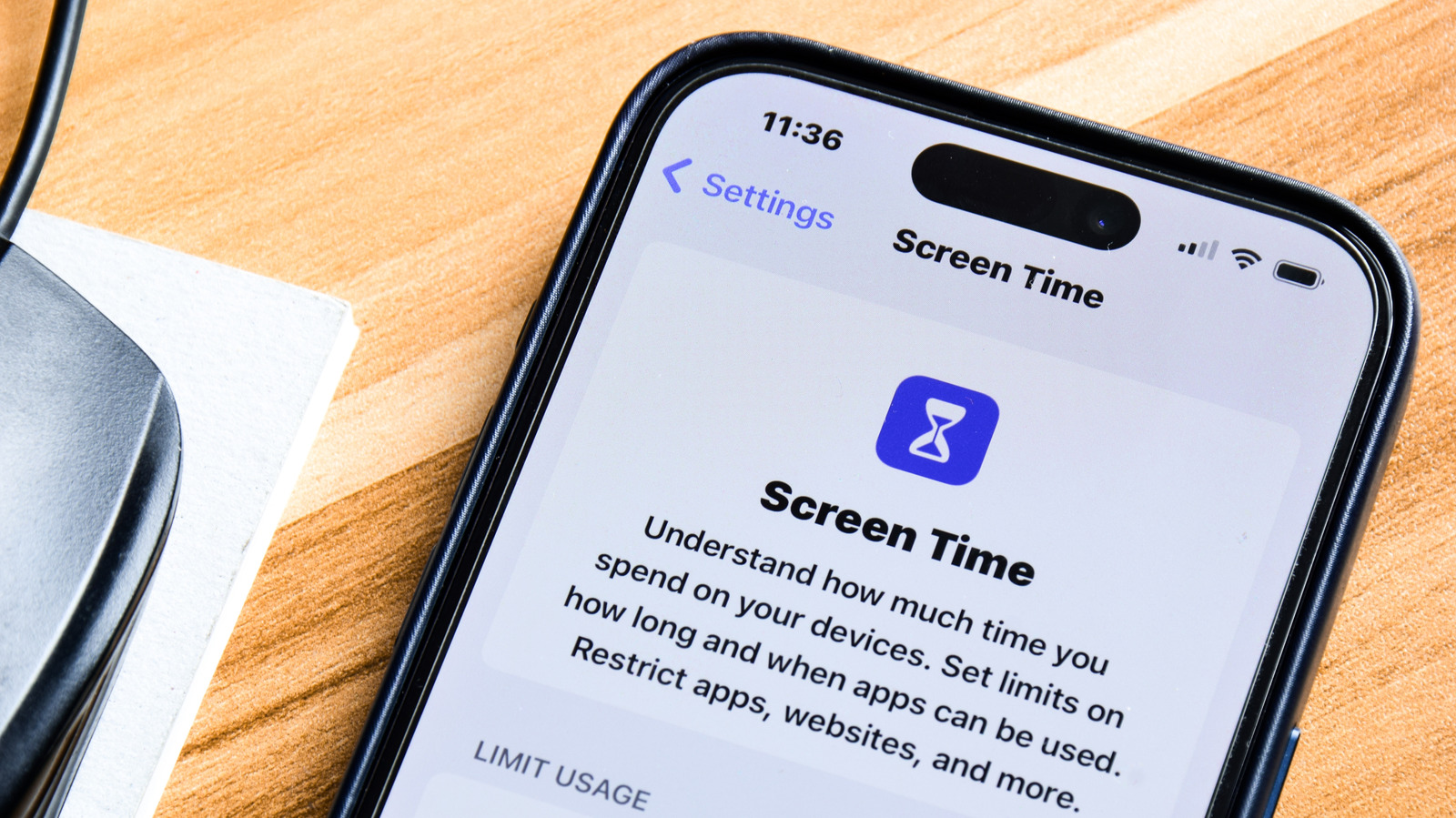
Without a passcode there is nothing stopping you from tapping past every limit. Have a friend set the PIN, or lock it behind a password stored somewhere inconvenient.
“there's nothing to stop you from bypassing the limits repeatedly”
The headline
Screen Time only works if you set a passcode. Without one, every limit is a suggestion you can tap past.