From Engadget · Calvin Wankhede · · 2m
Tune your Roku TV for better picture
Your Roku TV's default settings prioritize showroom appeal over accuracy. A few tweaks will give you a more lifelike image.
In brief
Your Roku TV's default settings prioritize showroom appeal over accuracy. A few tweaks will give you a more lifelike image. Roku TVs ship with settings optimized for retail display rather than picture accuracy. Adjusting picture mode and disabling post-processing yields a more neutral, lifelike image. Originally…
Default settings prioritize retail appeal
Roku TVs ship with settings chosen to make them stand out in stores, not to deliver accurate picture quality. Simple adjustments yield a more neutral, lifelike image that preserves artistic intent.
Access picture settings on your remote
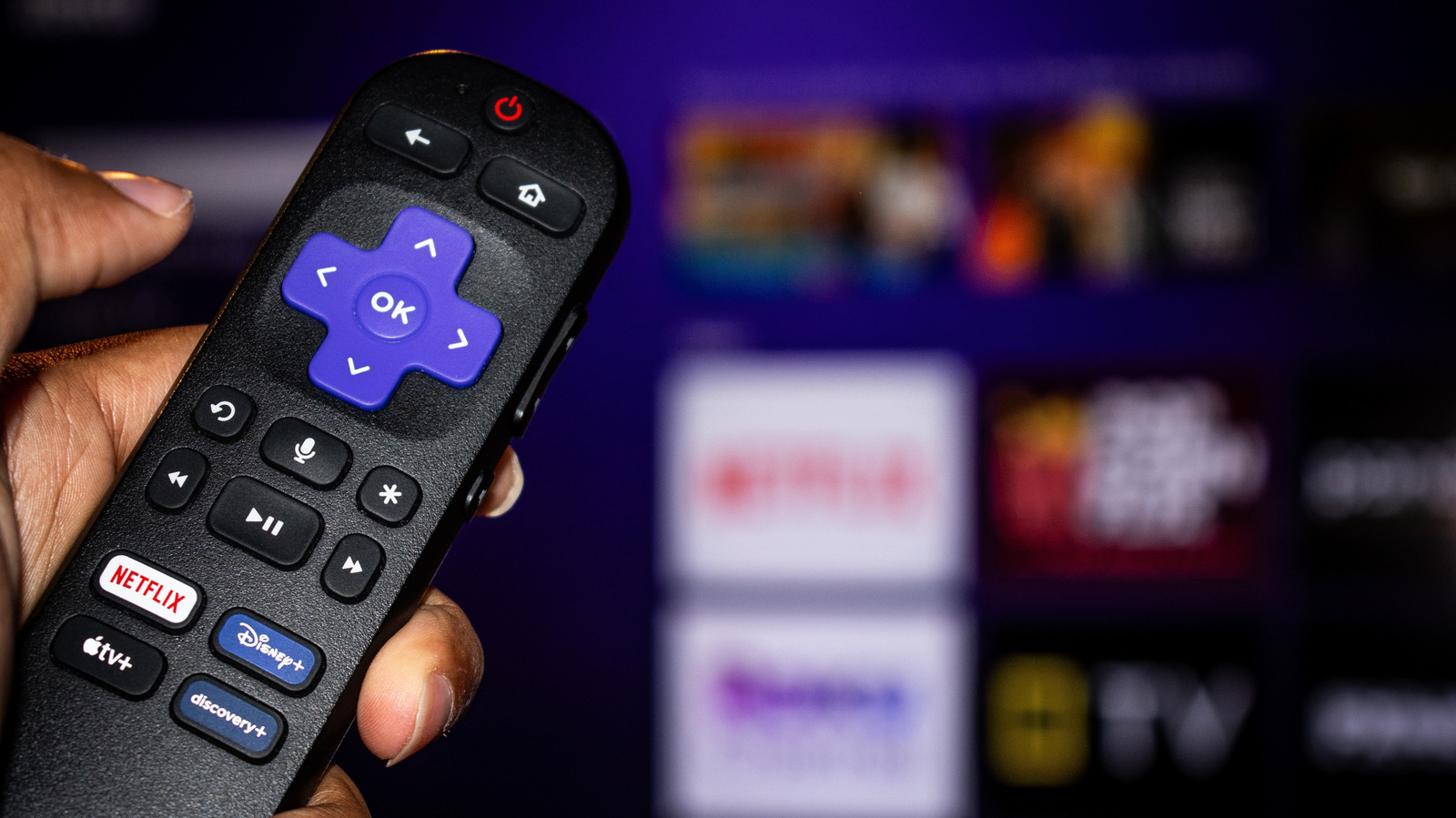
Press the star button on your Roku remote and select Picture Settings. You'll find Display Brightness, Picture Mode, and Customize picture options. Start playing content first if the menu doesn't appear.
Choose Standard or Movie mode
Standard or Movie modes offer the best accuracy. Movie mode has less image processing and skews slightly warmer. Vivid mode boosts color and brightness but looks exaggerated. Roku Smart Picture detects content and picks the right mode automatically.
Fine-tune brightness, contrast and sharpness
In Customize picture, adjust brightness, contrast and sharpness gradually. Higher sharpness can make pictures look overly processed. Watch content after each change to see results. Online calibration guides for your model provide a baseline to work from.
Disable motion smoothing for movies
In Expert settings, disable or set Action Smoothing, Action Clarity or LED Motion Clarity to Low. Motion interpolation makes fast content fluid for sports but gives movies an artificial soap opera look. Turn off Noise Reduction and Dynamic Contrast for accuracy.
Apply settings across all inputs
Picture settings apply to each input separately. Use the Apply settings to all inputs button at the bottom of Customize picture to avoid fine-tuning each input individually.
Disable Low Power mode for brightness
Most Roku TVs ship with Low Power mode enabled to meet energy regulations. This reduces maximum brightness, making bright scenes lose visual pop and darker scenes lose detail. It also reduces color vibrancy across the display.
Low Power mode undermines HDR content
HDR content is designed to use high brightness levels for intense highlights while retaining detail in dark areas. Low Power mode heavily impacts this, which is why budget TVs differ from expensive ones in how they handle HDR.
The big picture
Roku TVs ship with settings optimized for retail display rather than picture accuracy. Adjusting picture mode and disabling post-processing yields a more neutral, lifelike image.