From Engadget · Novak Božović · · 1m 50s
Which router port should you actually use?
WAN, LAN, 2.5G, 10G: the labels on the back of your router decide what your wired gear can really do.
In brief
WAN, LAN, 2.5G, 10G: the labels on the back of your router decide what your wired gear can really do. Check the port label, the device's Ethernet speed and the cable. A link only runs as fast as the slowest of the three. Originally reported by Engadget.
Ports are not interchangeable
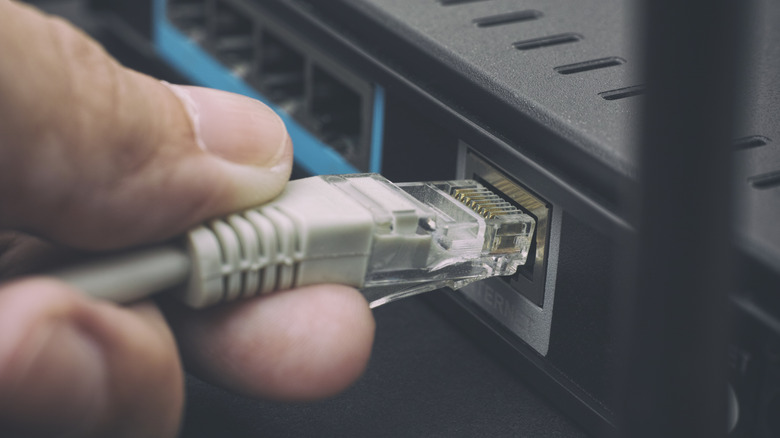
Some routers treat every Ethernet jack the same. Others mix jobs and speeds, so one port feeds the internet and the rest feed your gear.
“On some routers they are, but others feature a mix of ports with different jobs and maximum speeds.”
Start with the WAN port
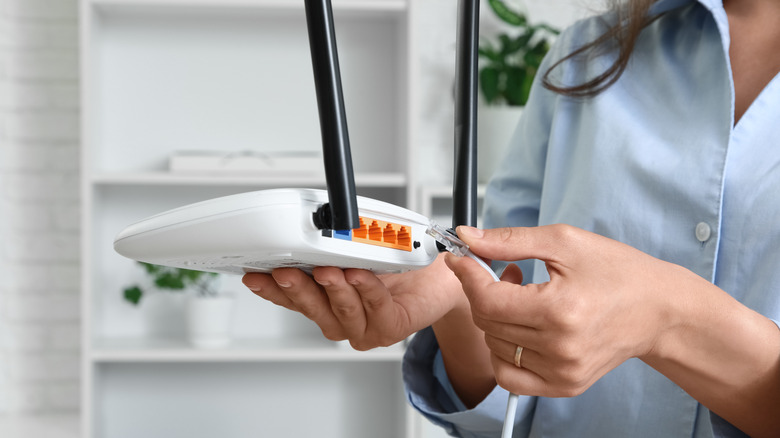
The cable from your modem or fiber ONT goes in the WAN or Internet port. That is the router's link to your provider. Combo modem/router units skip this step entirely.
“WAN stands for wide area network; here, it is the router's connection to your internet service.”
LAN ports are for your stuff
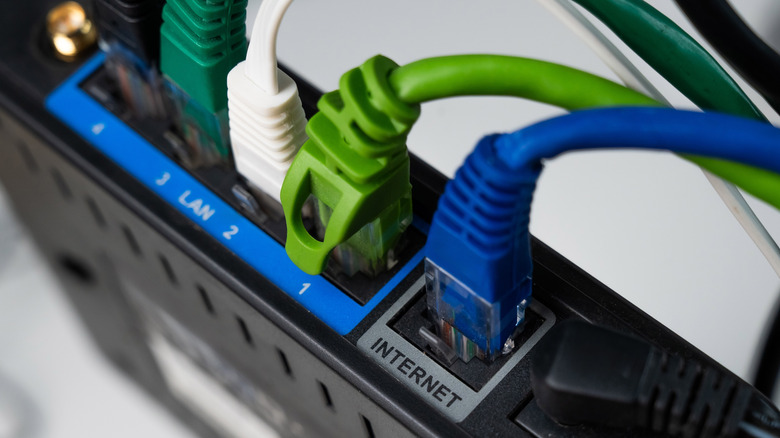
PCs, consoles, smart TVs and NAS boxes plug into the LAN ports. Four ports do not mean four internet connections, just four wired devices.
“Four LAN ports don't give the router four separate internet connections”
Some routers blur the line
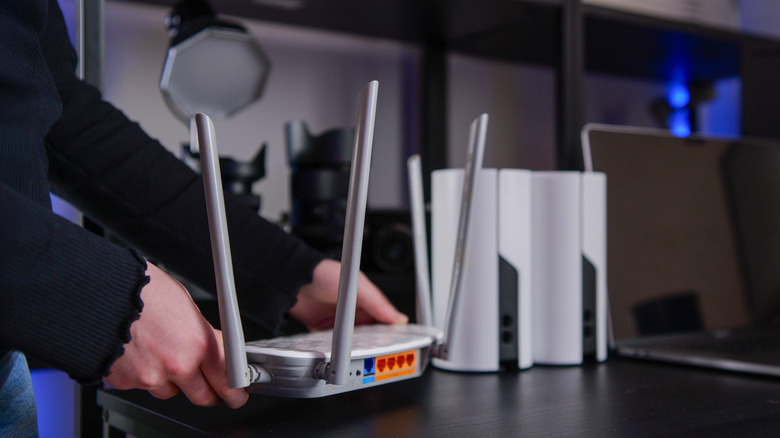
Ports marked WAN/LAN can do either job, and some routers auto-sense instead of using a dedicated jack. If nothing is labelled, the setup guide will say.
Out of ports? Add a switch
An Ethernet switch plugs into one LAN port and fans out several more, no second router needed. Works like an HDMI switch for your network.
1G, 2.5G, 10G explained
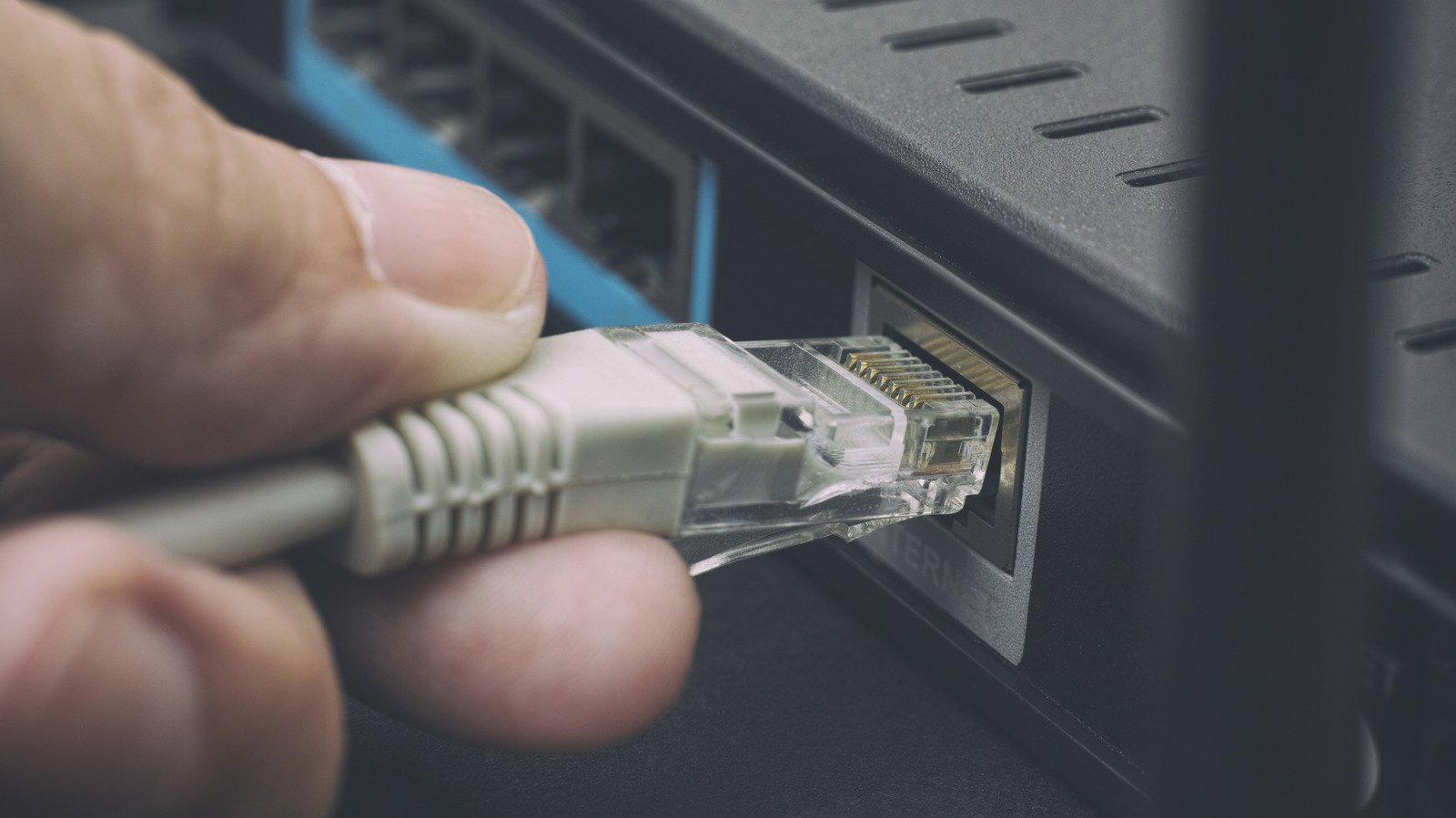
Those labels are maximum link speeds, sometimes written as 1000BASE-T or 2.5GBASE-T. Port number tells you nothing. On the TP-Link Archer BE900, the 10Gbps ports sit alongside 2.5Gbps ones.
“There is no general rule that port 1 will be faster than port 4 simply because of its position or number.”
The slowest link wins
A 1Gbps network card stays 1Gbps in a 10Gbps port, and a 2.5Gbps PC drops to 1Gbps in a gigabit port. Router, device and cable all have to agree.
“a 1Gbps device can't become 2.5Gbps-compatible just because the router port is faster”
Cables are categories, not ports
Cat5e, Cat6 and Cat6A describe cable, not router jacks. There is no Cat6 port to choose, though cable quality and length still cap the speed you get.
“there is no such thing as choosing a "Cat6 port" on the router”
The key point
Check the port label, the device's Ethernet speed and the cable. A link only runs as fast as the slowest of the three.