From The Verge · John Higgins · · 2m
Fix your new TV's picture right now
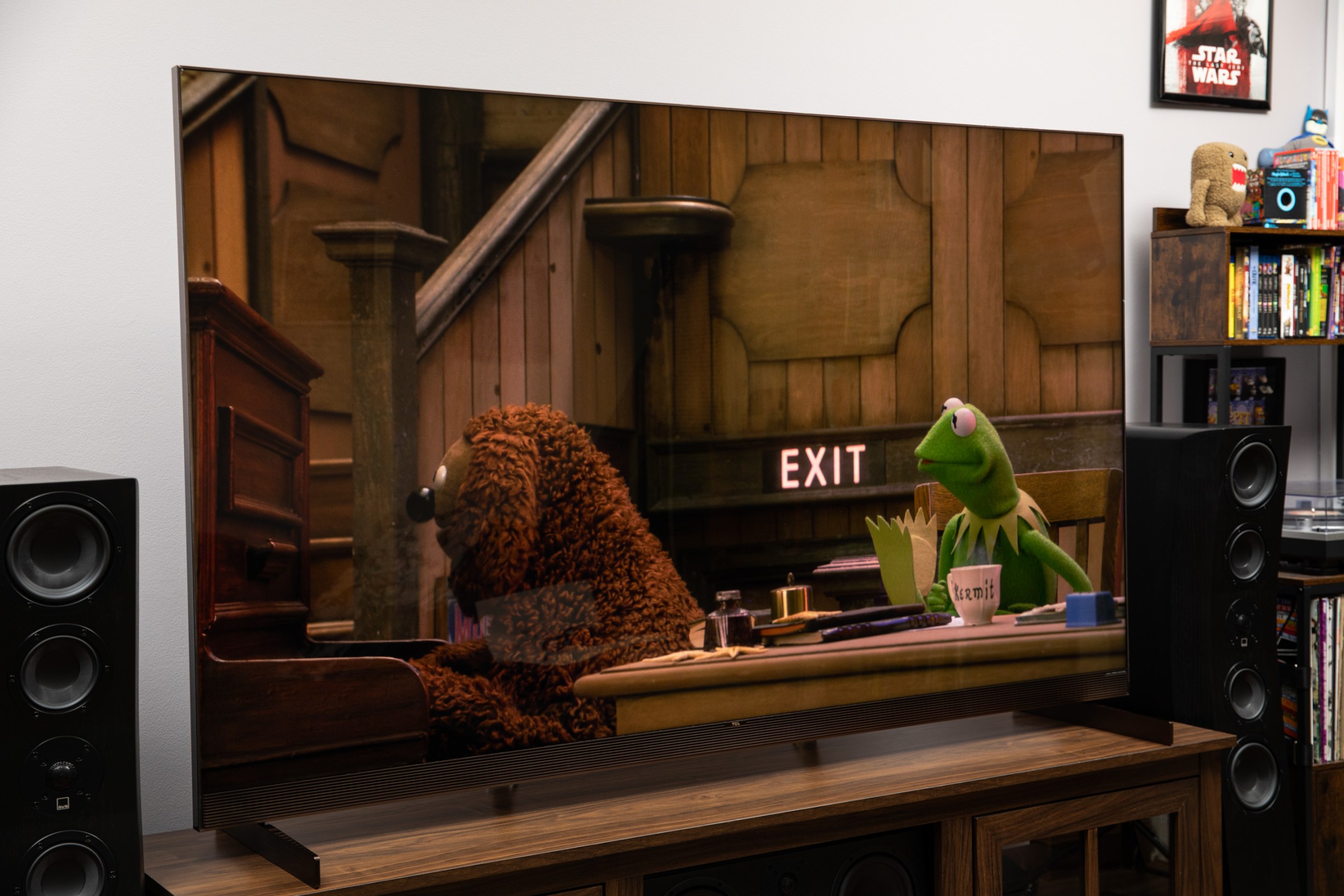
Your expensive new TV probably looks worse than it should. A few simple settings changes will make it look its best.
In brief
Your expensive new TV probably looks worse than it should. A few simple settings changes will make it look its best. New TVs ship in energy-saving modes that hurt picture quality. Switching to filmmaker or movie mode and disabling motion smoothing and ambient light sensors will dramatically improve performance…
Your new TV looks worse than it should

Most TVs don't perform well right out of the box. The default picture mode is usually called Eco or Energy Saving and is designed to meet energy consumption requirements, not deliver good picture quality.
Switch to filmmaker or movie mode

Change out of the default picture mode by selecting Filmmaker, Movie, Cinema, or Professional mode. This makes color temperature more accurate and turns off extra processing that makes images look artificially detailed or overly smooth.
Turn off the ambient light sensor
Disable the ambient light sensor, which may be called Brightness Optimization, Ambient Light Detection, Intelligent Mode, or Energy Saving Step. It adjusts brightness and color based on room light but makes distracting adjustments while watching.
Adjust brightness to your room
After turning off the ambient light sensor, manually adjust brightness or backlight based on how much light is in your room. High brightness works during the day but becomes overbearing once the sun goes down.
Disable motion smoothing
Turn off motion smoothing, which uses frame interpolation to create extra frames between existing ones.It makes movies look like afternoon TV dramas, an effect often called the soap opera effect.Filmmaker mode usually disables it.
“soap opera effect”
Avoid vivid and dynamic modes
Do not use Vivid or Dynamic picture modes. These modes only blast brightness and make the image incredibly blue, which is the opposite of the accurate color temperature you get from filmmaker or movie mode.
Enable gaming mode for consoles
If you plan on gaming, use Gaming mode to turn off extra processing and reduce input lag.
Set HDMI to enhanced mode
For anything connected via HDMI, especially gaming consoles, set HDMI settings to Enhanced instead of Standard. This expands bandwidth to the port's full capability. HDMI settings are usually in a General menu.
These tweaks unlock your TV's performance
Making these changes will help you get all the performance you paid for from your new TV. A new TV should last a few years, and these adjustments will lead to years of enjoyment.
What to remember
New TVs ship in energy-saving modes that hurt picture quality. Switching to filmmaker or movie mode and disabling motion smoothing and ambient light sensors will dramatically improve performance.
Read the TL;DR — this story on one card.