From Engadget · Ben Stegner · · 3m
Five PS5 settings that save time and space
PlayStation 5 owners can tweak buried settings to reduce storage waste, cut annoying alerts and get more from the console's best features.
In brief
PlayStation 5 owners can tweak buried settings to reduce storage waste, cut annoying alerts and get more from the console's best features. PS5 owners should adjust trophy captures, controller settings, notifications and home screen layout to improve their gaming experience and free up storage. Originally reported by…
Trophy captures waste storage fast
PS5 automatically captures screenshots and videos when you earn trophies. These files quickly eat storage space, especially if you play many games and chase trophies.
Save only platinum and gold videos
Go to Settings, Captures and Broadcasts, Captures, Trophies. Set Save Trophy Videos to Platinum, Gold to preserve big moments without flooding your system with videos for random bronze trophies.
Trim video length to fifteen seconds
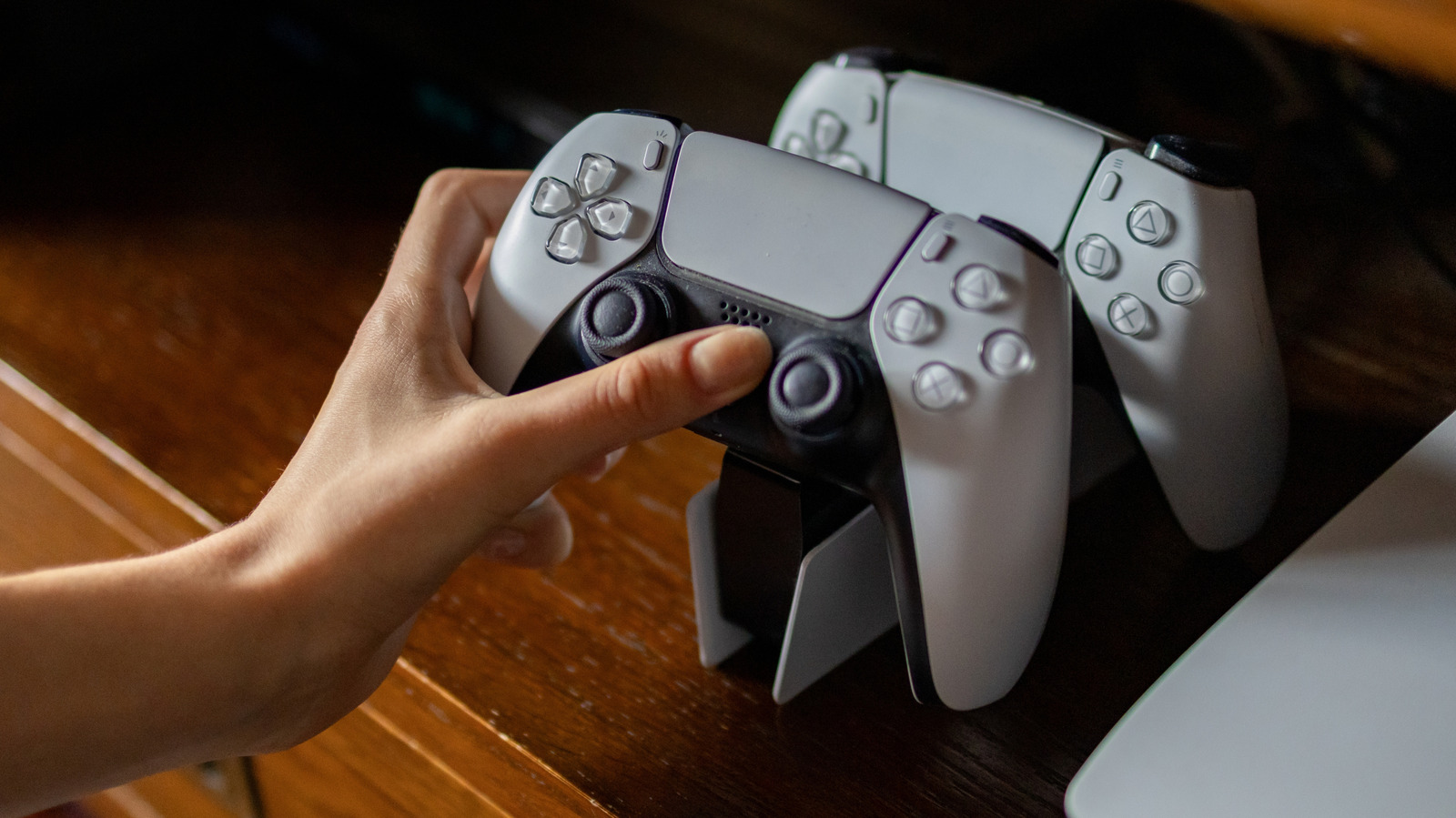
Set the Trophy Video Duration to fifteen seconds to save space unless you want the longer thirty seconds for full context. Screenshots also take up space and can be adjusted separately.
Adjust controller rumble and triggers
Go to Settings, Accessories, Controller to change Vibration Intensity and Trigger Effect Intensity. This lets you dial down the DualSense's standout features instead of turning them off entirely.
Mute the controller mic to restore haptics
When the PS5 controller's built-in mic is active, the system reduces vibration and trigger intensity to minimize noise pickup. Go to Settings, Sound, Microphone and change Set Microphone Status When Logged In to Mute.
Make the Create button easier to use
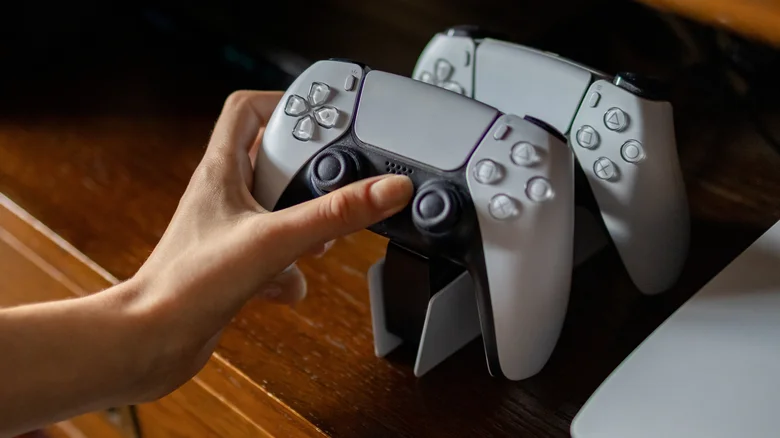
By default you must hold the Create button for a second to take a screenshot, making it easy to miss moments. Visit Settings, Captures and Broadcasts, Shortcuts for Create button and choose Easy Screenshots.
Control when notifications appear
Go to Settings, Notifications to choose which alerts you see and when. Hide notifications while playing games, watching media or live streaming so you don't get distracted at crucial moments.
Customize the control center layout
Press the PS button to open the control center, then press Options to customize it. Move items to different positions or hide ones you don't use, and add extra items like accessibility and network options.
Personalize your home screen widgets

Select the Welcome Hub icon on the home screen to access customization. Add widgets for free space, online friends, controller battery and recent screenshots so you don't dig into menus as often.
Pin your favorite games to home
Highlight a game title and press Options, then choose Keep in Home. The game stays as an icon on your home screen. You can pin no more than five items at a time.
Quiet the startup beep and lights
Go to Settings, System, Beep and Light to adjust the console's startup sound and light brightness. Change Volume from High to Low or enable Mute Beep Sound to avoid disturbing others during late-night gaming.
Set game presets to skip repetitive setup
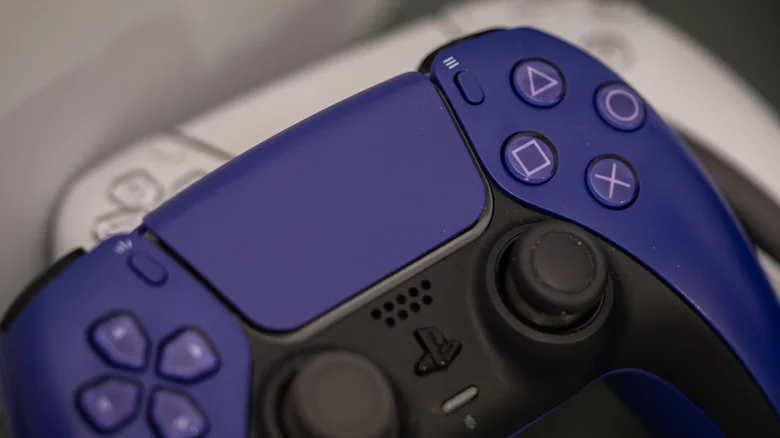
Go to Settings, Saved Data and Game or App Settings, Game Presets to save your preferred difficulty, performance or resolution mode, camera inversion and subtitles. Supported games use these without reconfiguring every time.
What matters most
PS5 owners should adjust trophy captures, controller settings, notifications and home screen layout to improve their gaming experience and free up storage.
Read the TL;DR — this story on one card.