From Engadget · Gabriela Vătu · · 2m
How to choose the right USB to USB-C adapter
Not all USB-A to USB-C adapters are built the same, and picking the wrong one can slow charging, tank file transfers, or damage your port.
In brief
Not all USB-A to USB-C adapters are built the same, and picking the wrong one can slow charging, tank file transfers, or damage your port. Match the adapter's USB generation to your device's port and intended use, and always buy from certified manufacturers to avoid port damage. Originally reported by Engadget.
Why you need a USB adapter
You've bought USB-C cables for fast charging, but your laptop's single C-port is reserved for charging itself. Adapters let you charge older devices and peripherals using USB-A ports on your laptop, wall chargers, or car.
The problem with cheap adapters
Not all USB-A to USB-C adapters follow the same standards. Two that look identical can perform very differently depending on USB spec, power delivery, and component quality. Picking the wrong one means sluggish transfers, slow charging, or damaged ports.
USB 2.0 adapters are basic
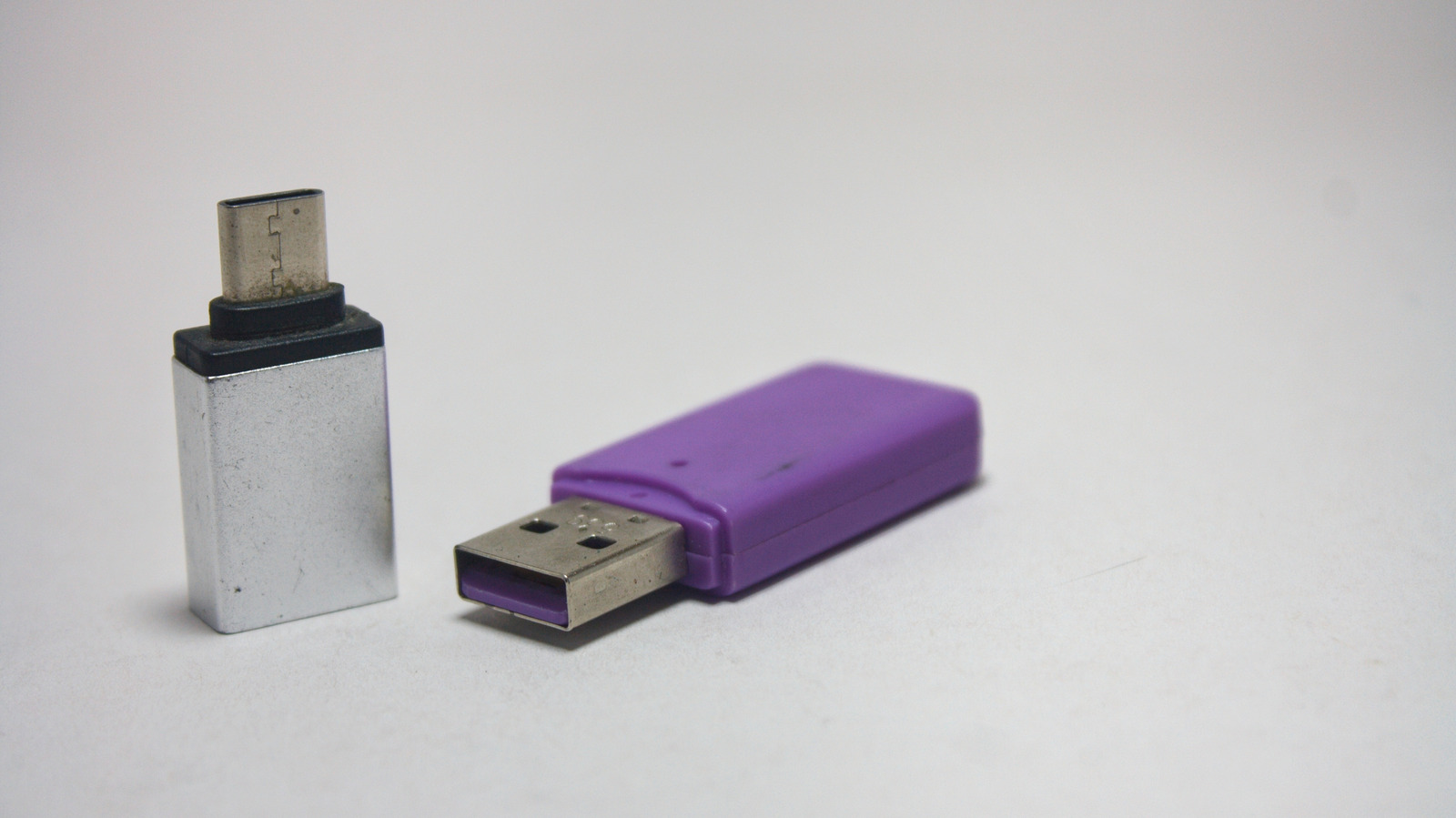
USB 2.0 adapters max out at 480 megabits per second for data and deliver just 2.5 watts of power. They're designed for low-power accessories like mice, keyboards, and wearables that don't need fast charging or high-bandwidth transfers.
USB 3.0 and 3.2 are faster
USB 3.0 supports up to 5 gigabits per second, about 10 times faster than USB 2.0. USB 3.2 Gen 2 goes even further at 10 gigabits per second. Wall chargers can push 12 to 15 watts through these adapters, but laptop ports cap around 7.5 watts.
Charging through adapters is slow
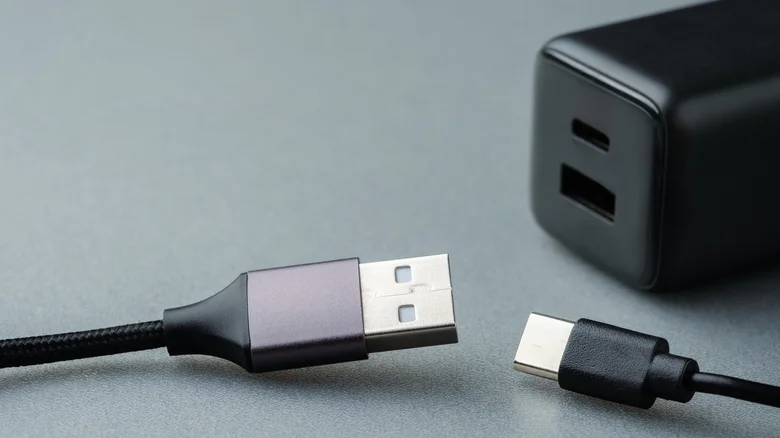
You're plugging the adapter into a USB-A port, so charging speed is limited by what that port can deliver. Your phone will charge slowly through an adapter even if you're used to fast charging with USB-C cables. Use adapters for wearables and headphones instead.
“You're probably used to super-fast charging by using that same cable with your capable charger, but it's just not going to work the same when plugged into an adapter.”
Match the adapter to your needs
Check your computer's USB generation first. USB 2.0 adapters work for low-power devices, but use USB 3.0 for external drives or flash drives to avoid the 480 megabit-per-second bottleneck that makes transfers painfully slow.
Buy certified adapters only
Cheap, uncertified adapters fail to regulate power correctly, risking overheating and port damage. Stick to trusted manufacturers with safety certifications like UL or CE and overvoltage protection. Saving a few dollars now costs way more in repairs later.
“Cheap and uncertified adapters can fail to regulate power correctly, which creates a risk of overheating or damaging your device's charging port over time.”
The takeaway
Match the adapter's USB generation to your device's port and intended use, and always buy from certified manufacturers to avoid port damage.