From Engadget · Vincent Arogya · · 1m 40s
How to clear the application cache on your Mac
Clearing app caches can free up storage and fix glitches, but won't necessarily speed up your Mac unless it's running short on space.
In brief
Clearing app caches can free up storage and fix glitches, but won't necessarily speed up your Mac unless it's running short on space. Mac apps store temporary files called caches to improve performance. You can clear them manually to reclaim storage or fix glitches, but only when needed. Originally reported by…
What Mac app caches do
Mac applications store temporary files called caches to improve user experience. These include image previews, downloaded content and other data that help apps launch quickly and serve content without additional processing.
Why caches become a problem
Application caches can continue taking up storage space even when an app no longer requires the cached files. Problematic app caches can also contribute to glitches, like displaying outdated or inaccurate content.
Where to find app caches

Your Mac typically stores application caches in the library slash caches folder. Since the library is a hidden directory, you need to use Finder command shift H to access it, then command J and check…
How to delete app caches
In the caches folder, find the application cache you want to clear.First-party Apple apps use the com dot apple prefix in their bundle identifier.Open the application folder and delete everything inside to clear its cache.
What happens after clearing
When you launch an app after clearing its cache, the app may take longer to launch and feel sluggish because it has to rebuild its cache.
When to clear caches
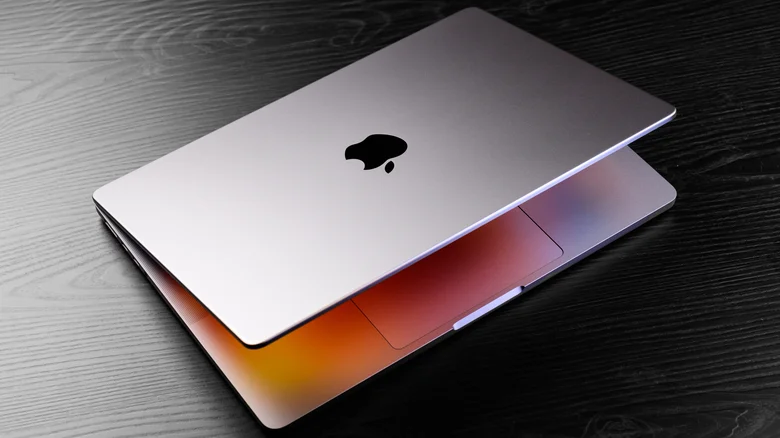
Clearing app caches doesn't necessarily improve application performance unless your Mac is running short on storage space.
“Clearing app caches doesn't necessarily improve application performance unless your Mac is already running short on storage space.”
At a glance
Mac apps store temporary files called caches to improve performance. You can clear them manually to reclaim storage or fix glitches, but only when needed.
Read the TL;DR — this story on one card.