From Engadget · Filipe Espósito · · 1m 40s
Your iMessage says Not Delivered. Now what?
Seven fixes for the moment a blue bubble stalls out and the red exclamation point shows up.
In brief
Seven fixes for the moment a blue bubble stalls out and the red exclamation point shows up. Tap the red exclamation point and resend, and if that fails, force the message through as a green-bubble SMS. Originally reported by Engadget.
Three services, one app
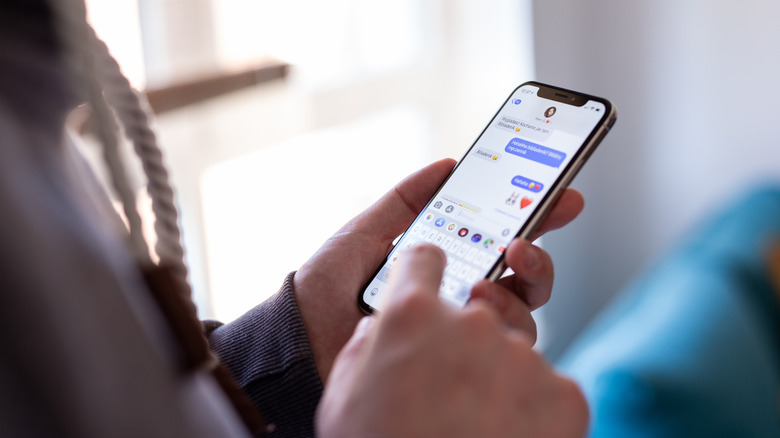
Messages juggles iMessage (blue bubbles), plus RCS and SMS (green). Which one your message is riding on often explains why it stalled.
“the iPhone's Messages app is more complex than it seems”
Just tap and try again
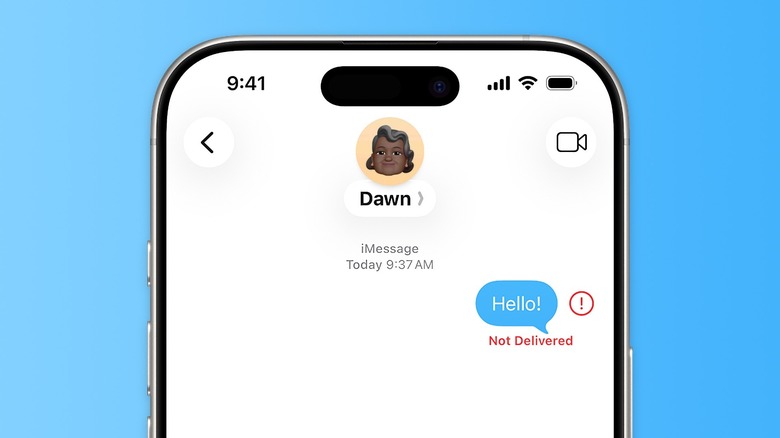
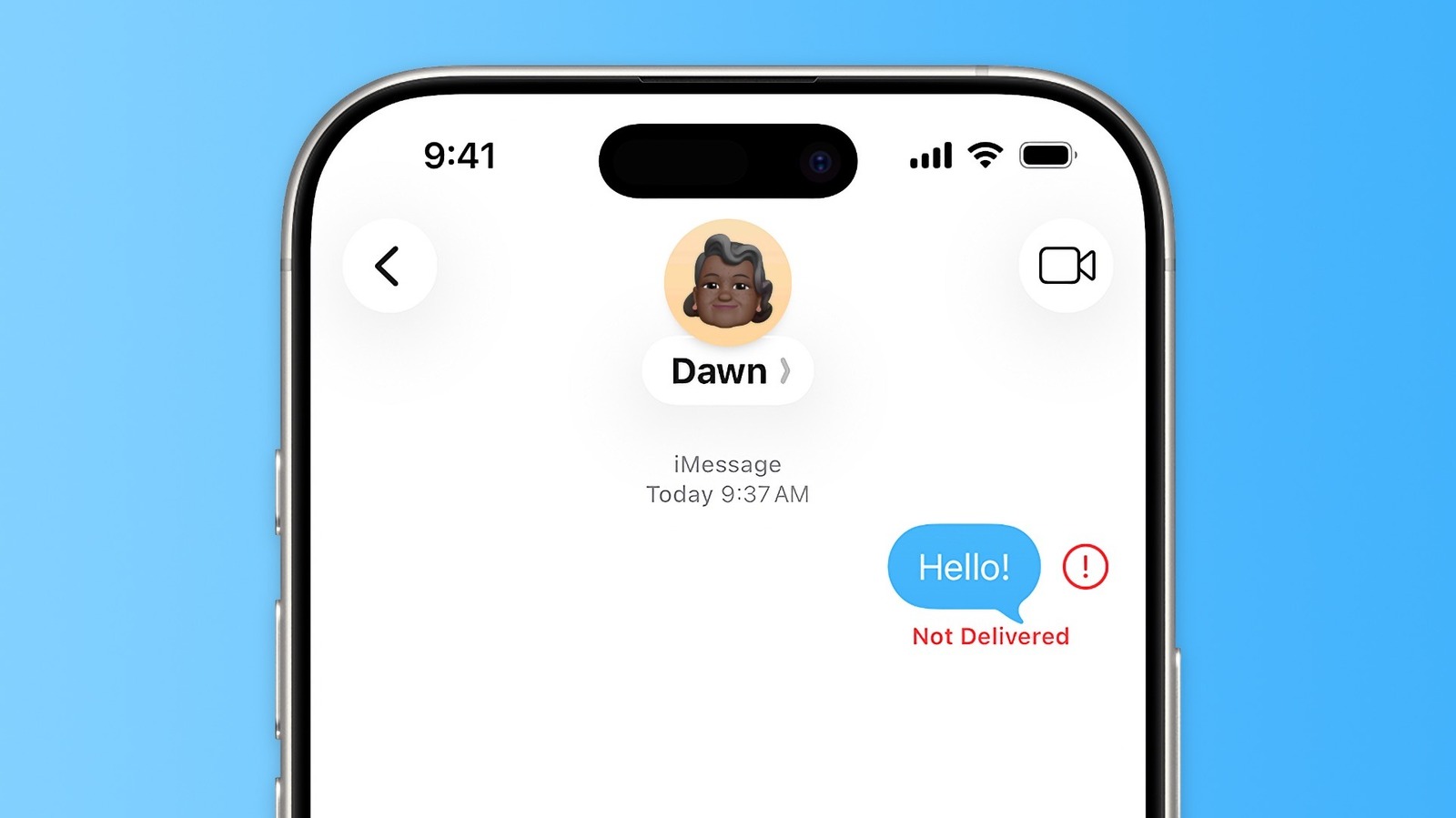
Hit the red exclamation point next to the failed message and choose to send it again. A second attempt clears a surprising number of failures.
No signal, no delivery
iMessage and RCS both need the internet, and SMS needs decent reception. Flip airplane mode on, then off, to force your iPhone back onto the network.
Send it as a text
Press and hold the failed message, then pick Send as Text Message. Turn on Retry as Text Message in Settings > Apps > Messages to make that automatic.
“Your blue bubble becomes green and is sent over the cell network”
Check iMessage is actually on
Switching iPhones sometimes leaves iMessage unactivated. Toggle it off, wait a minute, turn it back on, and confirm the right number or email under Send & Receive.
Maybe it isn't you
Apple's servers go down occasionally, so check the System Status page. Also try a different contact: if only one person never gets your texts, their phone may be off or you may be blocked.
Reboot, then update
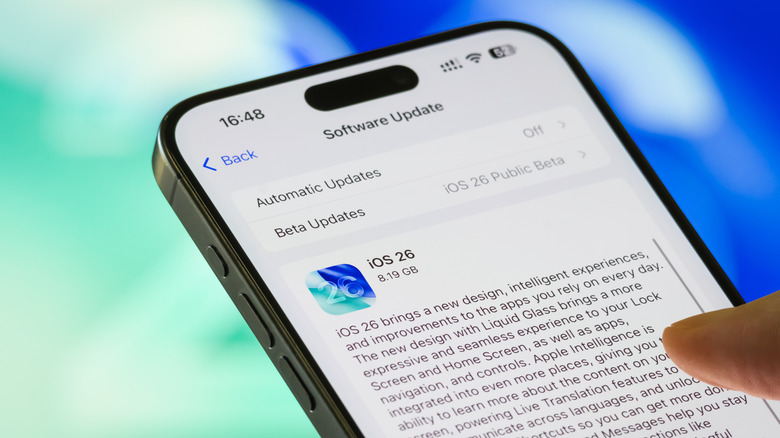
Restart the phone first. Then go to Settings > General > Software Update, since outdated iOS handles online services badly.
“older software that isn't maintained is more likely to have trouble with online services”
In short
Tap the red exclamation point and resend, and if that fails, force the message through as a green-bubble SMS.