From Engadget · Novak Božović · · 2m
Why your monitor has USB ports
Monitor USB ports let you connect keyboards, mice and storage without using your computer's ports, but they work differently depending on your setup.
In brief
Monitor USB ports let you connect keyboards, mice and storage without using your computer's ports, but they work differently depending on your setup. Monitor USB ports need an upstream connection to your computer to work, and that connection's speed limits how fast your accessories can transfer data. Originally…
Monitor USB ports explained
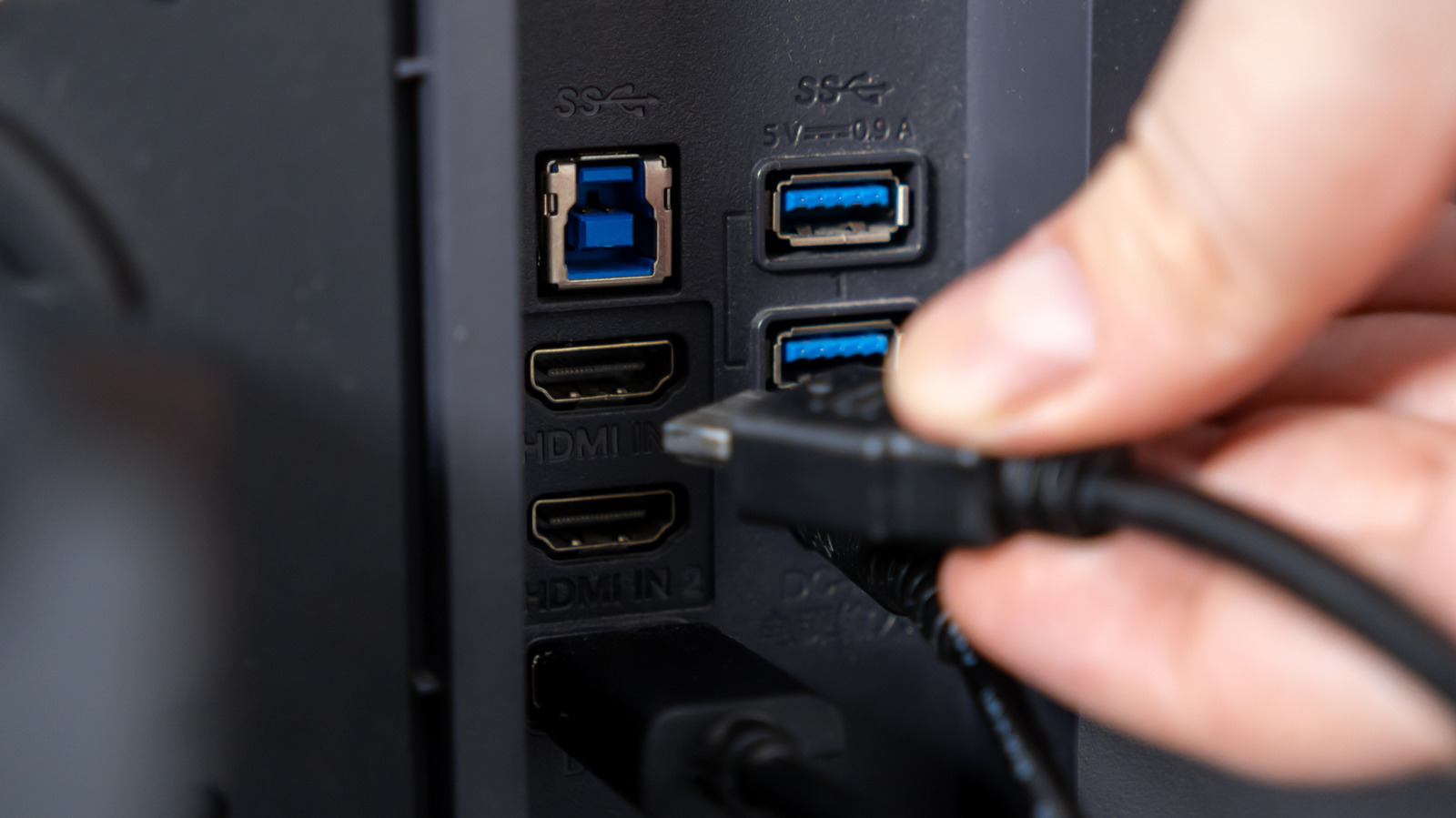
Your monitor's USB ports let you plug in a keyboard, mouse, webcam or flash drive, and they connect to your computer through the monitor itself.
Two types of USB connections
Monitors have upstream ports that send data to your computer and downstream ports where you plug in accessories. Data from your keyboard or mouse travels through the monitor to reach your PC.
HDMI and DisplayPort need extra cables
If your monitor uses HDMI or DisplayPort for video, it needs a separate USB cable to connect the hub to your computer. That cable carries the data from your accessories.
USB-C does it all in one
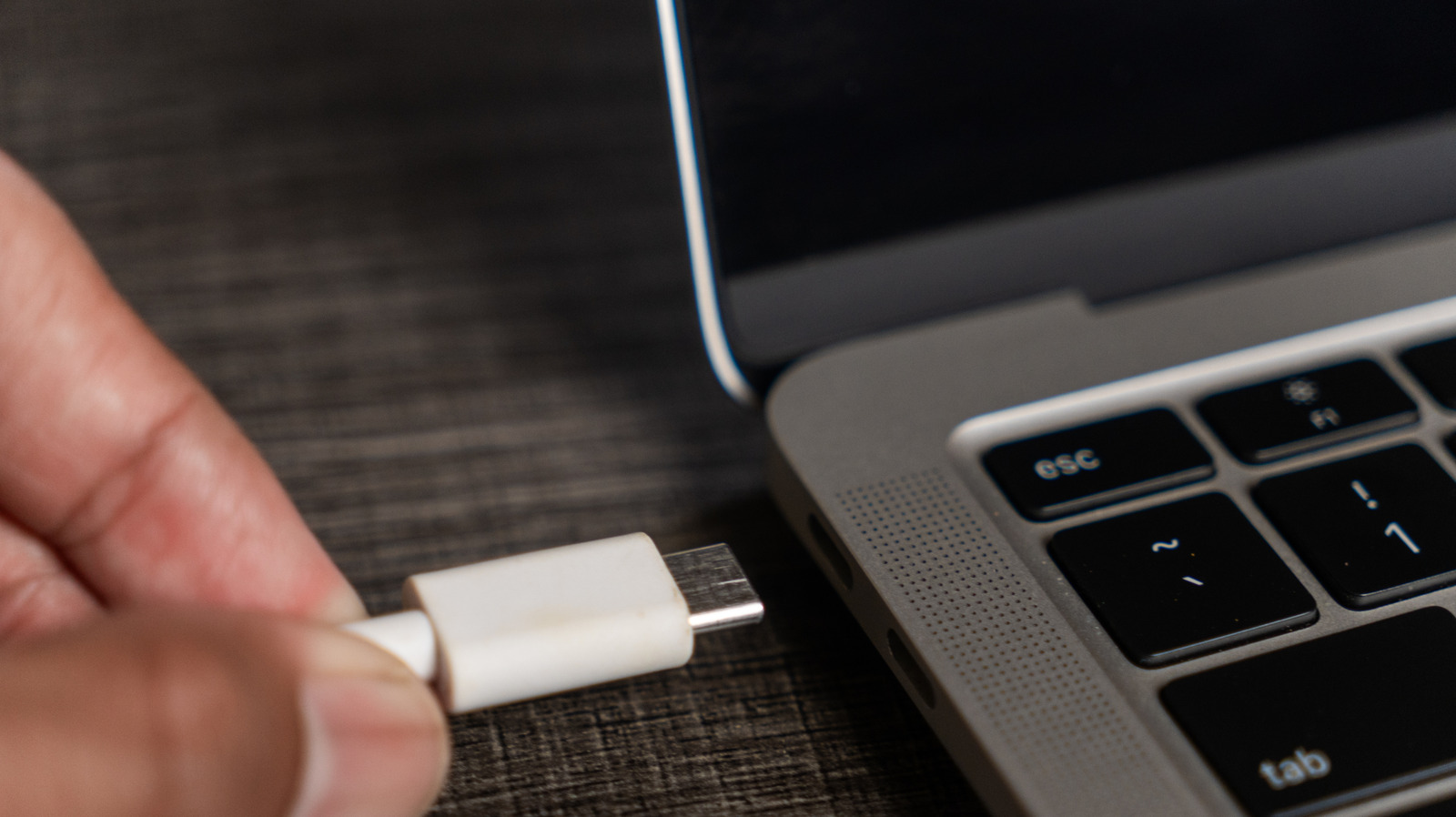
USB-C monitors can send video, carry accessory data and charge your laptop through a single cable. This works when the monitor supports DisplayPort Alt Mode and USB Power Delivery.
Best use: permanent desk accessories
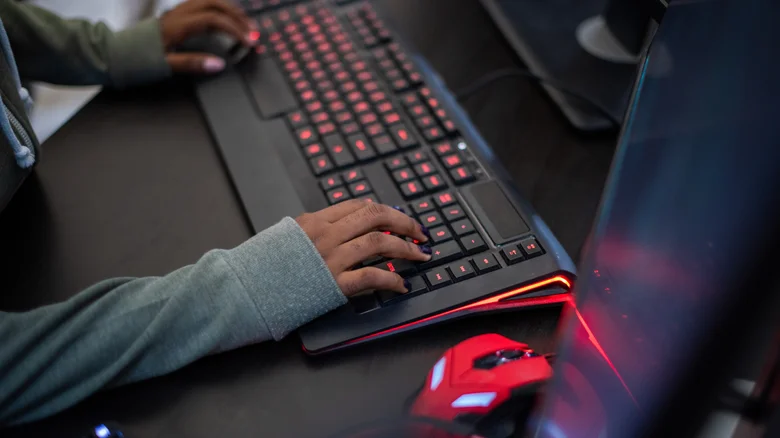
Keep your keyboard, mouse and webcam plugged into the monitor instead of your computer. When you reconnect the monitor's upstream cable, all your accessories reconnect at once.
Storage needs speed consideration
Monitor USB ports work for flash drives and external drives, but they share bandwidth with the upstream connection. If that connection is slow, it becomes a bottleneck for large file transfers.
Check your monitor's actual specs

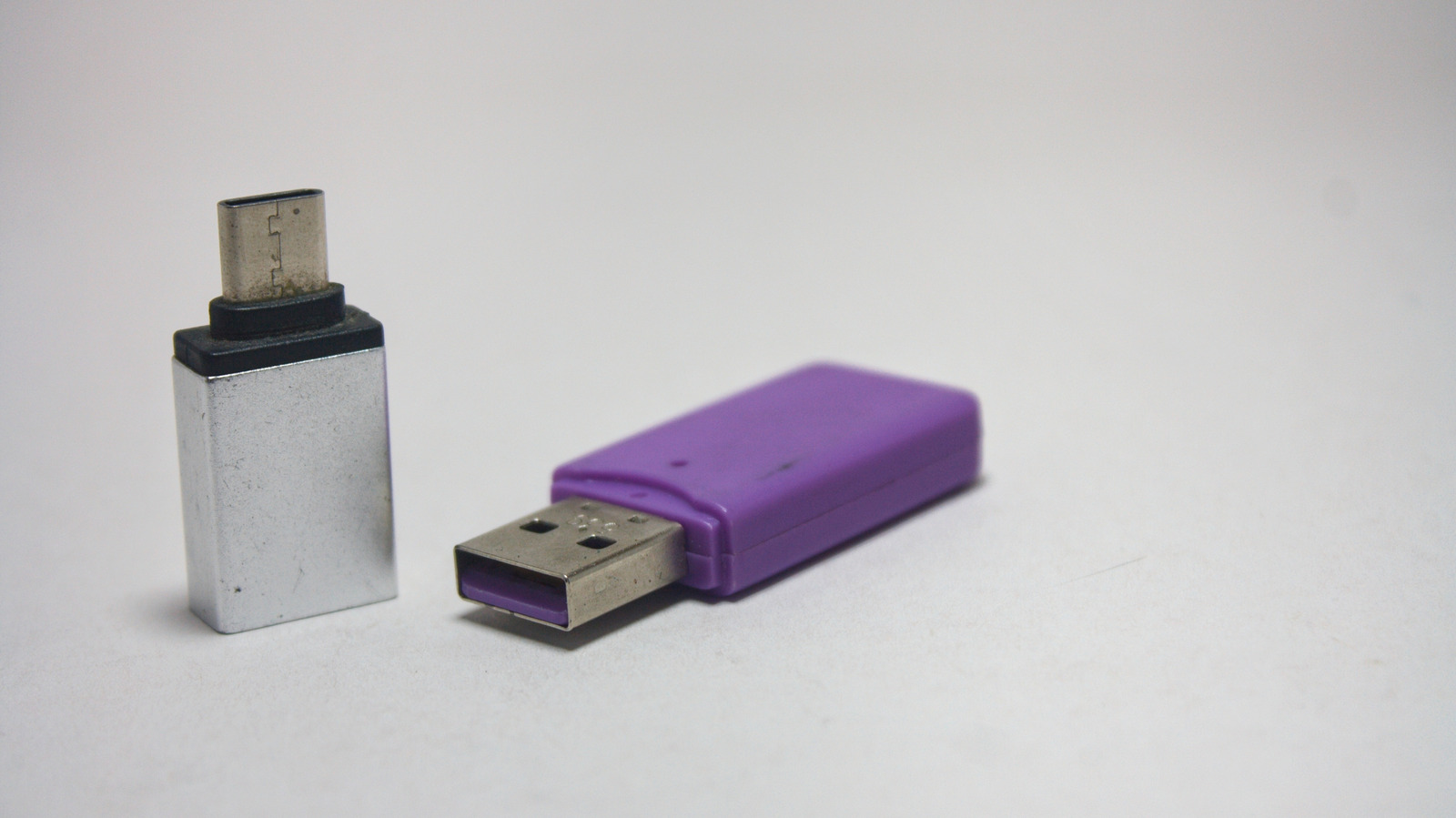
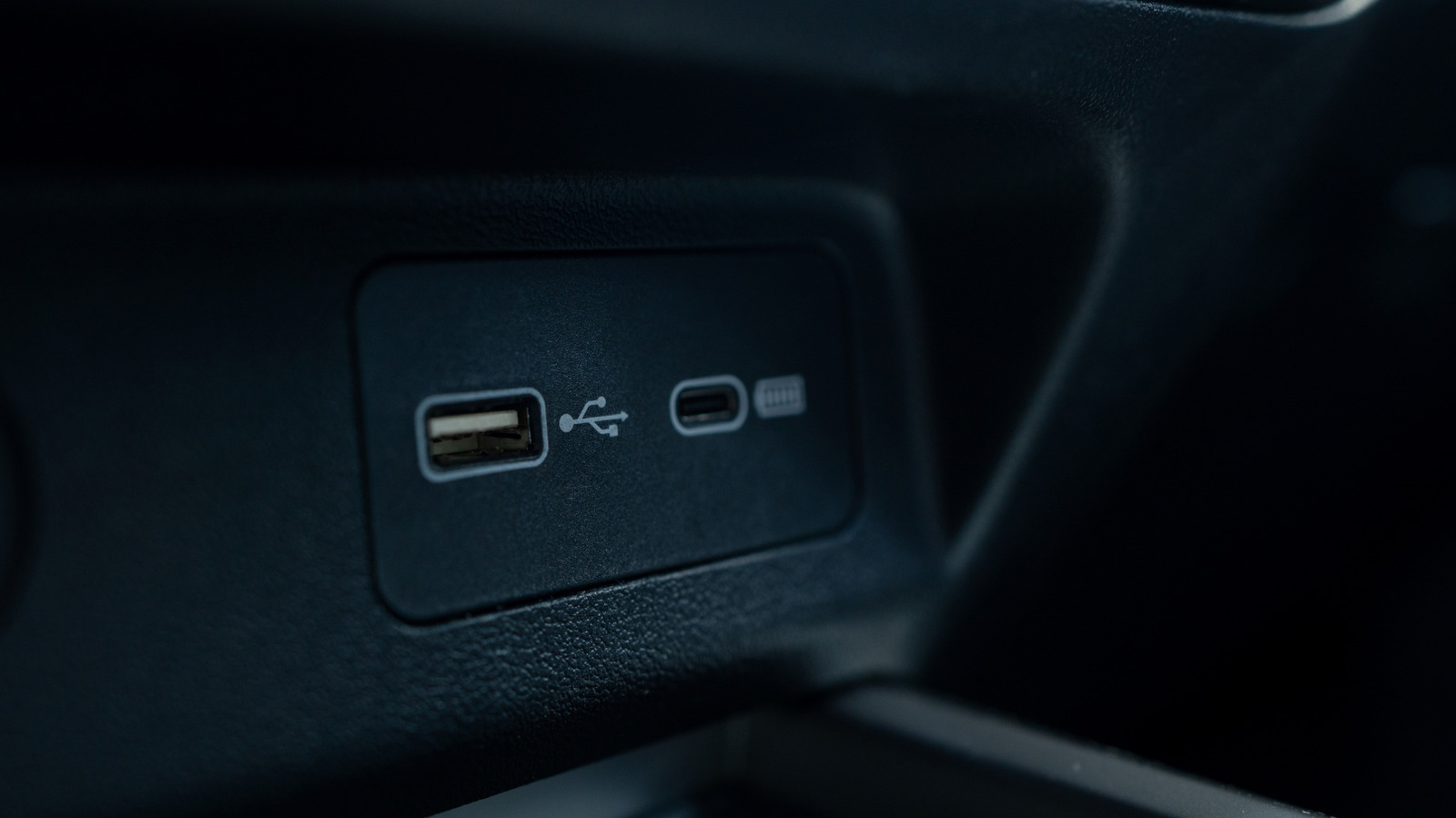
USB-C ports that look identical can have different capabilities. Check your monitor's manual to see which ports support video, charging or fast data speeds, since connector shape alone doesn't tell you.
“identical-looking USB-C ports don't necessarily have identical capabilities”
Bandwidth trade-offs on USB-C

Some USB-C monitors let you choose between high resolution video or fast USB data speeds, since both share the same connection. Check your monitor's settings if accessories seem unusually slow.
Add a hub if you need more
If your monitor lacks enough ports or specific connections like Ethernet, a dedicated USB-C hub can add them. But for everyday accessories, the monitor's built-in ports save you cables.
Here's the gist
Monitor USB ports need an upstream connection to your computer to work, and that connection's speed limits how fast your accessories can transfer data.